Sub-agents and Background Tasks (Agent Map)
When an AI employee hands work to sub-agents or runs long commands in the background, how to check progress, stop them and handle approvals in the Agent Map
Last updated:
Sub-agents and Background Tasks Overview
When an AI employee faces a big job in a conversation, it can decide to do two things on its own:
- Hand part of the work to a sub-agent to run in parallel (there are two types, General and Read-only Research), and the sub-agent returns a report when done;
- Run a very long command as a background task while it carries on with other work.
All of these sub-agents and background tasks are shown together in the Agent Map at the top of the conversation: a tree shows who dispatched whom, and below the tree is the Background Tasks list.
Prerequisites for Sub-agents and Background Tasks
- You can only see them in web-app conversations in the browser.
- The platform must enable this capability for your organization. Without it, AI employees do not dispatch sub-agents or start background tasks, and the entry points below do not appear in the conversation.
- The AI employee decides whether and when to use them; there is no button in the interface to start them manually.
View Progress
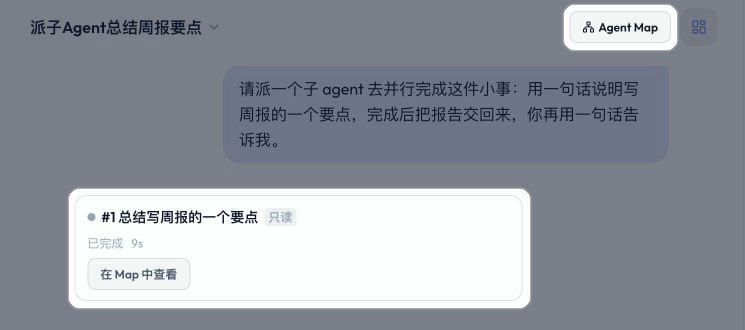
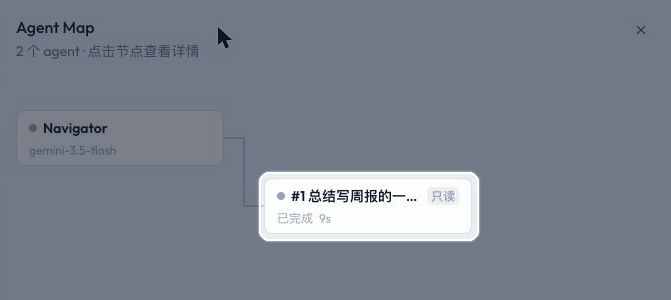
- The Agent Map button appears at the top of the conversation only after a sub-agent or background task has existed in it. The number on the button is the total of sub-agents still in progress plus background tasks still running; when everything has finished the number disappears, but the button stays.
- Click the button and a panel opens on the right: the sub-agent tree is on top and the Background Tasks list is below.
- Click a sub-agent in the tree to open its details:
- At the top are Status (such as Running, Waiting for Sub-tasks, Approval Needed, Completed), Type, Dispatched By (Main Conversation or another sub-agent) and Duration;
- Task Description is the instruction it was given;
- Execution shows what it is doing;
- When it finishes, a Returned Report appears.
- Click an item under Background Tasks to open the task details: Status, Type, Duration, Dispatched By (plus Exit Code once finished), Command (can be Expanded) and Output. While the task is running, the output refreshes automatically every few seconds; after it ends, only the last part is shown by default, and you can click Load Full Tail to read a longer part.
- Click Agent Map at the top left of the details to go back to the list.
Sub-agent cards and background task cards also appear directly in the conversation. Click View in Map on a card to open the panel and jump to that item.
Stop a Task
- While a sub-agent is in progress, there is a Stop button at the top right of its details or on its conversation card. When you stop a sub-agent, the sub-agents it dispatched stop together with it.
- While a background task is running, the details or the conversation card also have Stop. After you stop it, the AI employee is told that the user stopped this task.
When a Sub-agent Needs Approval
When a sub-agent wants to perform an action that needs confirmation, its status changes to Approval Needed, and the confirmation card appears in the main conversation. You answer it there (you can also see it in that sub-agent's details). If you do not respond within about 5 minutes, it expires.
Sub-agents and Background Tasks FAQ
- Does clicking Stop Generating stop background tasks? No. Stop Generating only stops the main conversation's current reply; sub-agents and background tasks must be Stopped one by one in the Agent Map.
- Cannot see the Agent Map button? No sub-agent or background task has appeared in this conversation yet, or your organization has not enabled this capability.
- A sub-agent has finished, so why has its report not come back? A sub-agent's report waits until the background tasks it started itself have finished.
- Where can I see background tasks started by a sub-agent? They appear only under Background Tasks in the Agent Map; no card appears in the main conversation.
- What are the limits? Each AI employee can run at most 10 background tasks at the same time; a background command runs for at most 2 hours and a watch-type task for at most 30 minutes, and they end automatically when time is up. Sub-agents can be nested at most 3 levels deep, and at most 20 can run at the same time in one conversation.