Run a Workflow and Handle Pending Tasks
Run workflows for real, run them on a schedule, review run history and run details, and handle the steps in Waiting on Me that need your confirmation or input
Last updated:
Run a workflow: overview
Once a workflow is published, you can run it for real: run it once right away, or set a time for it to run automatically. When a run reaches a step that needs a person (to fill in, upload, choose or approve), it pauses and continues after the right person handles it under Waiting on Me or on the run details page.
Page overview
Prerequisites
- Your role needs the View Workflows permission.
- The workflow must be published to be run for real or on a schedule. If it is not published yet, you see This workflow has no published version yet. Click Publish in the editor first.; for how to publish, see Build a Workflow.
- Workflows that colleagues shared with you and that you have permission to use can also be run and scheduled.
Run now
- In the Workflows list, hover over a published workflow's card and click Run; or click the card to open the workflow and then click Run on the top toolbar.
- The Start Production Run dialog warns you that a production run really performs the external actions in the workflow (such as sending emails) and goes into the run history, and that it runs the published version, not the current draft.
- Fill in the start parameters declared by the published version; the gray text in an input hints at the format. Run Now cannot be clicked until required fields marked with * are filled in, and the missing ones are listed below.
- Click Run Now, and the page jumps to the details of this run.
Scheduled runs
- In the Start Production Run dialog, click Scheduled Run; or open the workflow, click Scheduled Triggers on the toolbar, and then click New Scheduled Trigger.
- Enter a Name and choose a Trigger Type:
- One-time (pick a time): choose a Trigger Time;
- Recurring (cron): set the Frequency (Daily, Weekly, Monthly, Hourly, By Minute or Custom) and choose a Time Zone. The cron expression is interpreted in the selected time zone. "Daily 09:00" must be 9 o'clock in your business time zone; calculating in UTC would be off by several hours.
- Fill in the trigger inputs according to the parameters declared by the published version, and click Create. As with Run Now, it cannot be created until required fields are filled in, and the missing ones are listed below.
The scheduled trigger list shows only the triggers you created yourself; triggers that colleagues created on the same workflow are not visible to you. Each one shows its type, the next and last trigger times, and the Latest Result. You can Pause, Resume, Edit and Delete it. After deletion it no longer triggers automatically, and execution records and runs that already exist are not affected.
In the following cases, the person who created the scheduled trigger is notified under the System tab of Notifications (and by DM if Slack is connected; see Personal Settings):
- Automatically stopped: the workflow was deleted or you lost permission, the workflow temporarily has no published version, the workflow contains a loop step with its own schedule, or the information the workflow requires has changed. After it is stopped, the list shows Invalid with the reason below it (usually one line in English), and it no longer triggers automatically. Deal with the reason first (for example, if the required information changed, click Edit to fill it in and save), and then click Resume for automatic triggering to start again; editing and saving alone does not resume it. If you resume without handling the reason, it is stopped again the next time it is due. If a one-time scheduled trigger's time has already passed, there is no Resume; first Edit it to set a future time.
- Failed to start after several retries: this run did not happen. The scheduled trigger itself does not stop, and a recurring one triggers as usual next time.
- Organization credits are insufficient, so this run did not happen: it resumes automatically after a top-up, and you do not need to click Resume.
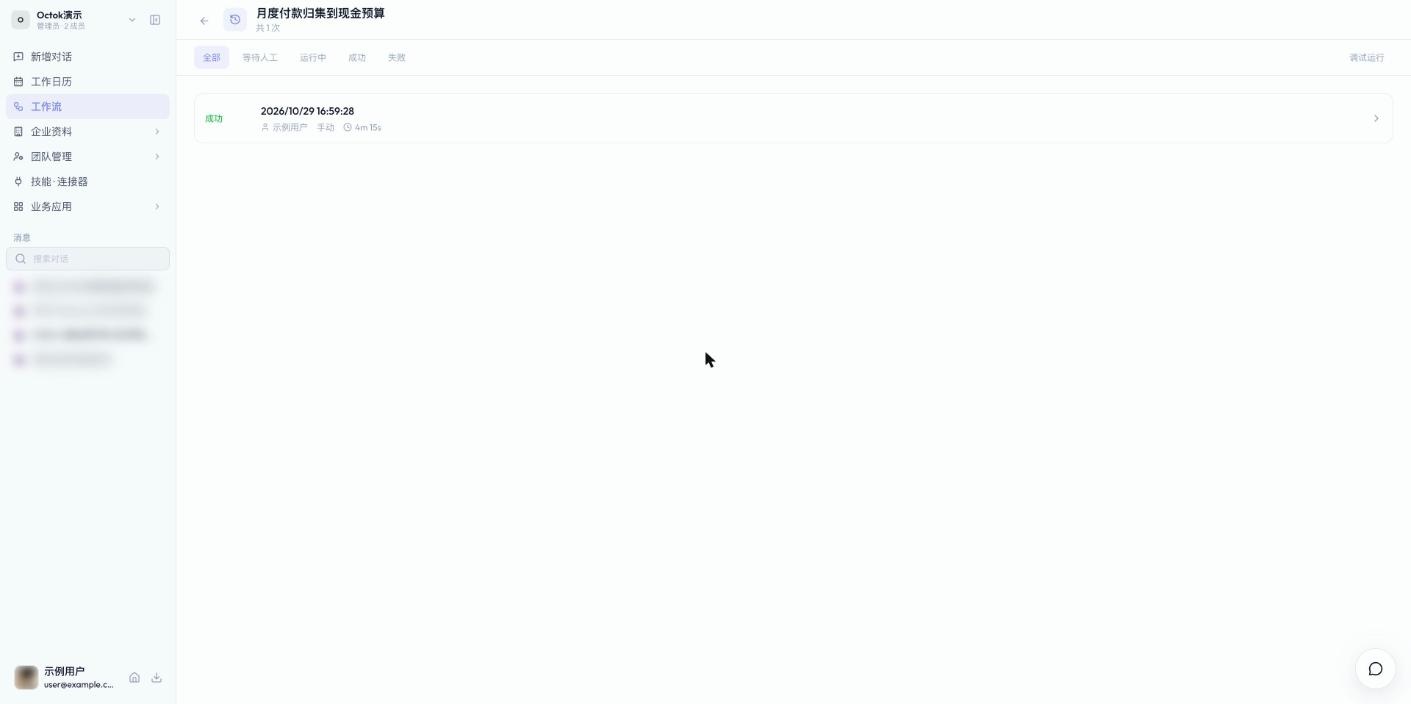
Run history
After opening a workflow, click Run History on the toolbar. It lists all production runs started by anyone on this workflow, and you can filter by All, Waiting for Human, Running, Succeeded and Failed. Debug runs are not shown by default; click Debug Run to see them. Click a row to open the run details. For a run that has not finished, the person who started it, the workflow owner and admins can click Stop.
Run details
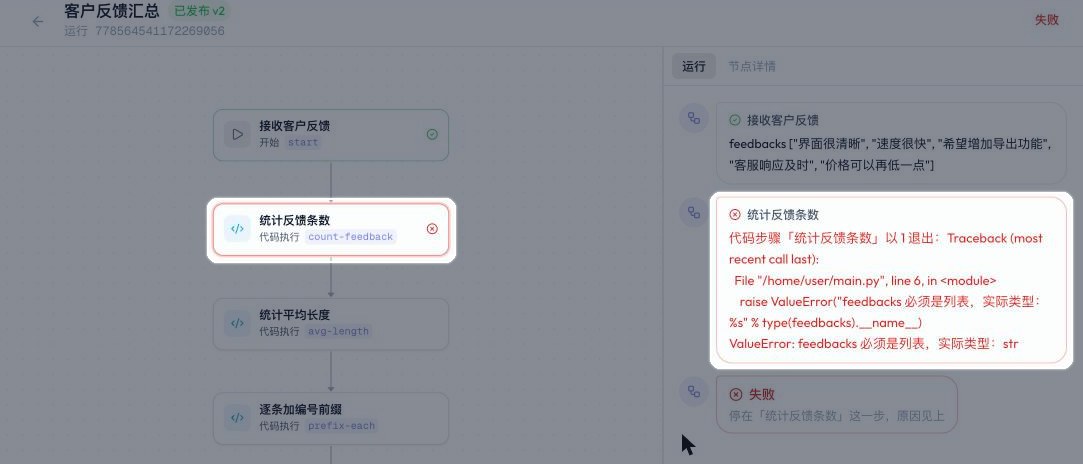
- The top shows the workflow name, the version that ran, the run ID and the status. While running, you can click Stop Run (visible to the person who started it, the workflow owner and admins). After you stop, the step currently executing finishes, and emails already sent and files already written cannot be undone.
- The canvas marks how far each step got. On the right you can switch between Run and Node Details to see each step's input, output and process.
- When a run fails, the failed step on the Run tab states the reason in red text, and the last entry says where it stopped. Click that step on the canvas to see its configuration and the original error text under Node Details. Steps that were not reached show This step was not reached in this run. When a Run for Each Item step fails, you can use Retry Failed Items in its Node Details; see Run for Each Item.
- If the run is waiting for a person, a matching form appears on the Run tab: Waiting for Input, Waiting for Upload, Waiting for Your Choice, Waiting for Your Reply or Waiting for Your Approval (the default options are Approve / Reject). Submit it after filling it in to continue; a step that is not required can be skipped with Skip This Step.
- When an app tool used by a Hand Off to AI Employee step is set to Require Approval in Permission Settings under App Authorization, a production run that you started manually pauses and waits for your confirmation: a Confirmation Needed card appears on the Run tab, stating which operation it wants to perform in which app and the parameters of this call. Clicking Allow lets only this one call through, and the run then continues; clicking Deny means it is not executed, and If you deny, this step will fail. When several items need confirmation at once, you can only Allow All or Deny All. The card shows a deadline (at most 24 hours; if the step has a maximum execution time set, whichever comes first applies); after it passes, it shows This confirmation has expired and the step fails. You can confirm only on the run page; you get a reminder in Notifications and can also find this run under Waiting on Me. The tool's permission setting does not become Allow as a result. Debug Run, runs started by an AI employee in chat, and runs started by scheduled triggers do not pause and wait: the call is simply denied and not executed, and the AI employee receives the denial and continues handling it.
- When the workflow has parallel branches, the top of the Run tab summarizes the progress of each branch, and each step also shows statuses such as Queued and Stopped; see Parallel Branches.
- When a step that sends email is interrupted midway, the Run tab shows Checking whether this email was sent: The previous send was interrupted midway, and the result is being confirmed with the email service, which takes up to about 10 minutes. You do not need to do anything; it continues automatically once confirmed.
Waiting on Me
- At the top of the Workflows list page, the latest Waiting on Me item is shown, with a badge for the total count. When there is more than one, click View More to open the full list.
- Each item corresponds to a production run that is stopped at you (or your role); click it to open the run details and handle it. For input and upload steps with no designated handler, only the person who started the run gets the to-do. Debug runs do not appear in your to-dos.
- When there are no to-dos, this section is hidden; when the full list is empty, it shows Nothing is waiting for you.
Run a workflow: FAQ
- Clicking Run says there is no published version? The author needs to click Publish in the editor first.
- Clicking Run Now says Can't Run Right Now? A step in the workflow uses an AI employee or knowledge base that you do not have permission to use. You can ask an admin to grant access, or click Copy and Edit and replace those steps with ones you have permission for.
- The run failed and says someone needs a personal authorization for an app? A Call Tool step uses the Personal Authorization of the person who started the run (for scheduled runs, the person who created the scheduled trigger). Ask that person to connect (or reconnect) the app under App Authorization → Personal Authorization and then run again. If it says the tool is Require Approval or Deny, change it to Allow in that app's Permission Settings. Problems of this kind do not show Can't Run Right Now before the run; the run fails only when it reaches this step.
- Run details say Couldn't load the record of this run. The network or service may be temporarily unavailable., or the canvas says Couldn't load the execution status of each step, so the canvas is not colored for now? It just failed to load this time; it does not mean the run did not happen or the record is lost. Click Retry; if you were offline, it reloads automatically once you are back online. Handle run history and Waiting on Me load failures the same way.
- Opening a run link from a colleague says This run does not exist, or you don't have permission to view it? Either the run does not exist, or you are not in the sharing scope of the workflow it belongs to (for example a colleague's private workflow). Ask the workflow owner to add you to the sharing list. After a workflow is deleted, only the person who started the run, the workflow owner and admins can still open it.
- Opening a workflow's run history or scheduled triggers says This workflow does not exist, or you don't have permission to view it? The workflow has been deleted, or you are not in its sharing scope; retrying will not change that. Ask the workflow owner to add you to the sharing list.
- The run failed and the reason says the result of sending this email is unknown, or it cannot be confirmed whether it was sent? Something went wrong midway while this step was sending, and the email may already have gone out. First check the sent folder to confirm whether it was sent, then decide whether to run again, to avoid sending duplicates. If the reason says the conversation of a Hand Off to AI Employee step is still in the opening state, handle it the same way: first check that AI employee's conversation list to see whether it has already started working.
- I cannot see the conversation of a Hand Off to AI Employee step in the run details? Only the person who started the run can see that conversation; others see Only the person who started this run can view this conversation, and people without permission to use that AI employee see You don't have permission to use this AI employee, so you can't see this conversation.
- If I change the workflow, do runs in progress change? No. A production run is pinned to its version when it starts; only newly started runs use the newly published version.
- Does unpublishing affect runs in progress? After unpublishing, no new production runs can be started; how runs already in progress are handled follows the notice shown on the page.
- The scheduled run's time is off? Check the time zone selected for the scheduled trigger. It is interpreted in the selected time zone, not in UTC.