Add Your Own MCP Connector
Add MCP servers on the Connectors page and assign them to AI employees. These connections only take effect when you chat with the AI employee yourself.
Last updated:
Add an MCP connector: overview
The Connectors page is where you add your own MCP servers and assign them to the AI employees you can use. These connections apply only to you: the AI employee can use them when you chat with it, but not when other colleagues chat with it. On the AI employee's detail page, under the Connectors tab, these entries are marked Only for Me.
This page is the Connectors page under Skills & Connectors, used to add and assign MCP servers. The AI employee detail page also has a Connectors tab with the same name; that is where you see which apps and MCP servers this AI employee can use and switch them on or off one by one. They are not the same page.
To connect a third-party system for the whole organization, use a custom app in App Authorization; see App Authorization.
Page overview
Prerequisites
- Your role needs the View Connectors permission for Skills & Connectors to appear in the left sidebar. Once inside, switch to Connectors at the top of the page.
- You must also be able to use at least one AI employee; otherwise this page cannot be used.
Add an MCP server
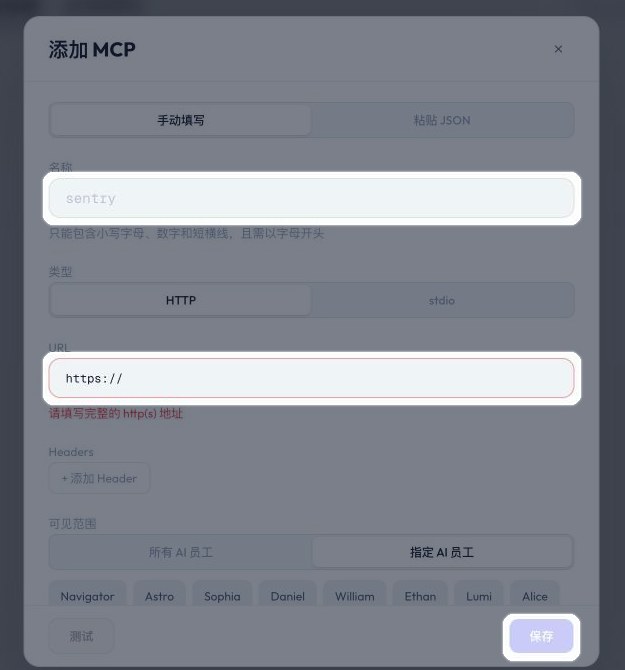
- Click Add MCP in the top right.
- Choose Enter Manually and fill in:
- Name: must start with a lowercase letter and contain only lowercase letters, digits and hyphens, up to 64 characters; it cannot duplicate an app ID in App Authorization; it cannot be renamed after creation;
- Type: HTTP or stdio;
- HTTP: enter the URL (a complete http or https address) and add Headers if needed;
- stdio: Command can only be npx or uvx; then fill in Arguments and Environment Variables. Secrets in arguments are not stored encrypted for now. Pass them as environment variables instead.;
- For Header and environment variable values, you can select Secret: the value is not shown after saving, and leaving it blank when editing means no change;
- Visibility: All AI Employees, or choose Specific AI Employees and select them. You can only select AI employees you can use.
- You can first click Test to check whether it connects, and then click Save.
Bulk import: in step 2, choose Paste JSON instead, paste standard mcpServers JSON, set the Visibility, and click Preview. The preview lists new, conflicting and erroneous entries. For each conflict, choose Skip or Overwrite. You can first run Test All, and finally click Confirm Import.
Manage the MCP servers you added
- A card shows the type (HTTP / stdio), the address or command, and who it is assigned to (All AI Employees, Unassigned or "N specific"). For servers you have tested, it also shows the result of the last check.
- List Tools: actually connects to this MCP server once and lists the tools it provides. A stdio server borrows an AI employee's runtime environment, so the first time it may say it needs to be initialized first (about 30 seconds); just click Test Anyway. Only one test can run at a time.
- Edit: change the configuration or visibility (the name cannot be changed). To stop a particular AI employee from using it, clear its checkbox in the visibility settings.
- Delete: after deletion, the assigned AI employees can no longer use this connector. A confirmation dialog appears before deleting.
On the AI employee side
After assignment, this MCP server appears on the AI employee's detail page under the Connectors tab, in the Other MCP Servers section, marked Only for Me and with a switch. If you have management permission for that AI employee, you can turn it off there. You cannot delete it from there; to remove it completely, come back here and adjust the visibility.
Add an MCP connector: FAQ
- A colleague says they cannot use the MCP server I added when chatting with this AI employee? A connection added here applies only to you. To share it across the organization, use a custom app in App Authorization instead.
- I cannot find the MCP server I added in the channel permissions? Personal connections do not fall within the scope that applies to everyone in a channel; see Channel Permissions.
- Tools cannot be listed / the test fails? First read the failure message (for example address unreachable, authentication rejected, or the package does not exist on npm), then check that the address, command and secrets are correct. Public addresses must use https.
- Saving says the name is already taken? The name cannot duplicate an app ID in App Authorization. Choose a different name.