Create a Knowledge Base and Set Visibility
Create a standard library or a Google Drive sync library, set visibility and member permissions, and see which AI employees can search the library.
Last updated:
Creating a Knowledge Base Overview
A knowledge base is your organization's library of material organized by topic. Once authorized, AI employees can search its content in chats and while working. Your organization comes with one Company Public Knowledge Base (Default company public knowledge base, readable by everyone); all other knowledge bases are created by members.
Page Overview
Prerequisites for Creating a Knowledge Base
- Your role needs Knowledge Base View Permission for Company Resources → Knowledge Base to appear in the left sidebar. With this permission you can create knowledge bases.
- Creating a knowledge base checks credits: if both your personal quota and the organization's shared quota are used up, you cannot create one.
- To create a Google Drive sync library, first connect your own Google Drive under App Authorization → Personal Authorization (see App Authorization). If your role has no personal authorization permission, the dialog shows No app authorization permission.
Knowledge Base List
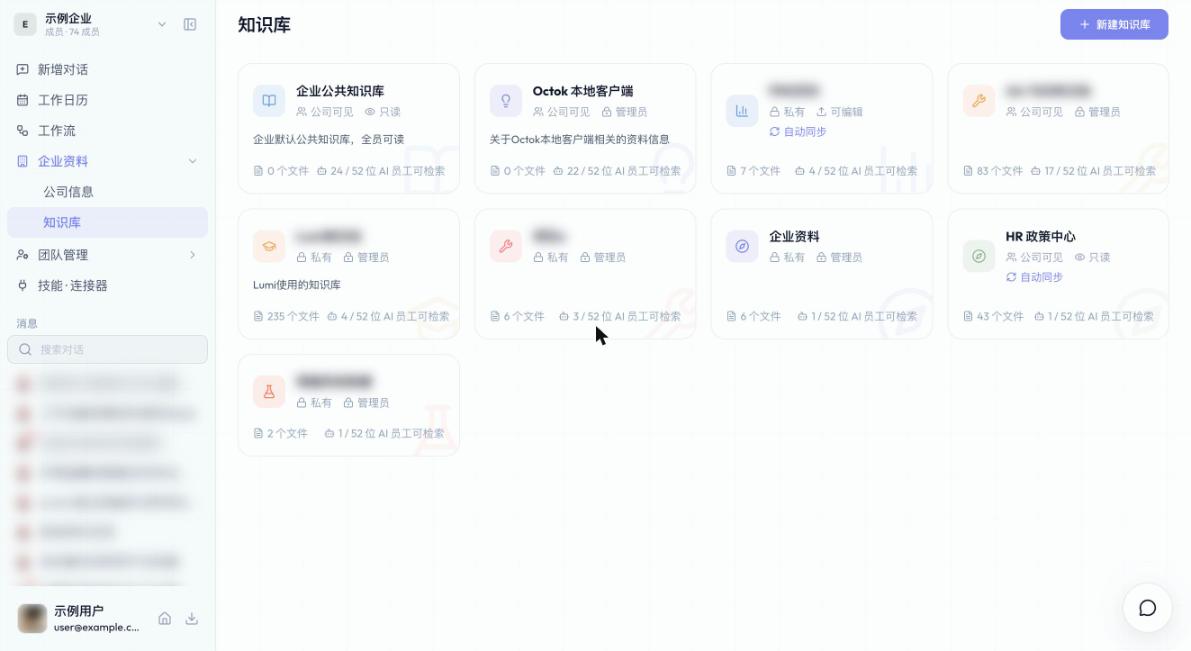
In the left sidebar, go to Company Resources → Knowledge Base. You can see the Company Public Knowledge Base, libraries whose visibility is Visible to Everyone in the Company, and libraries where you or your role has been added as a member.
Each card shows the name, the visibility (Company-wide or Private), your role in this library (Admin, Can Edit or Read-only), the file count, and "N / M AI employees can search" (highlighted as a reminder when none are enabled). Sync libraries are also marked Auto Sync. Click a card to manage files inside the library; see Manage Knowledge Base Files.
Create a Knowledge Base
- Click New Knowledge Base at the top right (when there are no knowledge bases yet, you can also click Create Your First Knowledge Base in the middle).
- In the Complete Knowledge Base Info dialog, choose a Type:
- Standard Library: Upload files manually;
- Google Drive Sync Library: Read-only mirror · Auto sync.
- Fill in Name (required) and Description (optional). Click the small icon to the left of the name box to change the Icon and Cover Color. The same person cannot create two knowledge bases with the same name.
- If you chose a sync library:
- If Connect Google Drive is shown, you have not connected yet. Clicking it closes the dialog and takes you to the App Authorization page; after connecting Google Drive under Personal Authorization, go back to the knowledge base page and click New Knowledge Base again;
- If already connected, in Sync Folders (required), go level by level through your Drive folders and add the folders to sync; you can add several. Check Include Subfolders as needed.
- Click Create (for a sync library it is Create and Start Sync, and the first sync starts as soon as the library is created).
A new knowledge base is Private by default, and its creator is its admin.
Important: After creation, it is not open to any AI employee by default; you need to enable search permission for each AI employee on its "Knowledge Base" tab. For how, see "Let an AI employee search this library" in Manage Knowledge Base Files.
Set Visibility and Members
Only the Admin of a knowledge base can open its settings, and every tab below (including the list of searchable AI employees and the change log) is visible only to them. The Company Public Knowledge Base is managed by the system role Admin.
- Hover over the knowledge base card and click the pencil icon (Edit) at the top right; or open the knowledge base and click Settings on the right of the top bar. Both open Knowledge Base Settings.
- Basic Info: change the name, description, icon and cover color, then click Save Changes. The name and description of the default company public knowledge base cannot be changed.
- Member Settings:
- Choose one of two options for Knowledge Base Visibility; it takes effect immediately when you select it: Visible to library members only (Members who are not authorized cannot see this knowledge base; suitable for sensitive data or department-private material) or Visible to everyone in the company (Any member of the company can read this library; suitable for public material such as brand and employee handbooks). The default company public knowledge base is always visible to everyone in the company and cannot be changed. Visibility only controls who can see the library in Octok. Once a library is linked to an AI employee, what the employee searches in conversations is the set of libraries linked to it (in channels this is further narrowed by channel permissions), regardless of whether the person asking can see the library themselves. Do not link sensitive material to AI employees that many people can use.
- Roles & Permissions has three tiers: Admins (Can manage), Members who can edit (Can edit), and Members who can read (Can read). Switch to a tier, click Add Admin or Add Member, and search for members or roles to add them; hover over a row and click the trash icon to remove it. When visibility is set to everyone in the company, everyone can already read, so the Members who can read tier is no longer shown.
- The Creator of a standard knowledge base is fixed under Admins and cannot be removed; the Company Public Knowledge Base always has the system role Admin fixed under Admins.
- AI Employees That Can Search: a read-only list of the AI employees that have search enabled for this library, with the total at the top (matching the N on the card). On the right of each row are that AI employee's Managers: the creator's name is followed by Creator, individually named people show their names, and the system role Admin shows as the role name. You cannot switch anything here; clicking an AI employee's name opens the Knowledge Base tab of its details page, where its admin makes changes. If there are none, a notice says no AI employee is linked to this library yet.
- Sync libraries have an extra Auto Sync tab: it shows Sync Source, Sync Folders, Status and Last Synced; you can click Sync Now and change Include Subfolders. Sync folders cannot be changed after the library is created. Status is Normal, Some Files Not Synced, Sync Failed (not a single file synced in) or Reauthorization Needed; when some files were not synced in, they are listed below by reason together with how to fix them. See the Google Drive sync library section of Manage Knowledge Base Files.
- More: delete the knowledge base.
- Change Log: lists, from newest to oldest, who did what to this library's files and settings and when. You can switch between All, Files and Settings, with 20 entries per page.
- Files: Upload, Delete, Move, Modify (only records that a change happened, not the content), Delete Folder (lists the files deleted along with it).
- Settings: name, description, icon and cover color under Basic Info; visibility and member Add and Remove under Member Settings; Include Subfolders under Auto Sync for sync libraries.
- When an AI employee changes files at someone's request in a chat, the actor is recorded as the person who started the chat, marked Modified in chat with the AI employee's name; changes brought by Drive auto sync show the actor as System, marked Auto Sync.
- Not recorded: creating or renaming folders, previewing and downloading, the act of clicking Sync Now itself (files synced in are recorded as usual), which AI employees can search this library, list changes caused by members leaving the organization, and changes made before this feature was released. The log does not keep file content and cannot be used to restore files.
Delete a Knowledge Base
In Knowledge Base Settings → More, click Delete Knowledge Base, type the knowledge base name as prompted, and click Confirm Delete. This deletes the current knowledge base and all its content. It cannot be recovered after deletion, so proceed with caution. The default company public knowledge base cannot be deleted. After deleting from Settings inside the knowledge base, you are returned to the knowledge base list automatically.
Creating a Knowledge Base FAQ
- An AI employee cannot find the library I just created? New libraries are not open to any AI employee by default. Go to that AI employee's details page → Knowledge Base → Searchable Knowledge Bases, check the library and save; see Manage Knowledge Base Files.
- A colleague cannot see my knowledge base? A new library is Private. Change the visibility to Visible to everyone in the company, or add them (or their role) under Roles & Permissions.
- No pencil icon on the card and no Settings in the library's top bar? Only the library's Admin sees these two entry points.
- Creating a sync library shows No app authorization permission? Ask your organization admin to give your role the Personal Authorization permissions, connect Google Drive, and then create the library.
- A sync library shows Reauthorization Needed. Can I disconnect Google Drive under Personal Authorization first and then reconnect? Do not do that. If the library's creator disconnects Google Drive under Personal Authorization, the sync libraries they created become standard libraries and no longer sync automatically (files already synced are kept), and reconnecting later does not restore them; you can only create a new sync library. The correct way: the library's creator goes to App Authorization → Personal Authorization and clicks Reconnect directly on the Google Drive card (when the card shows Reauthorization Needed, this button is on the card; when it shows Connected or Expired, it is under the "⋯" menu), then goes back to the library and clicks Sync Now after authorization completes. See App Authorization and Manage Knowledge Base Files.
- Can very large files in Drive be synced in? A single file in a sync library can be at most 50 MB; Google Docs, Sheets and Slides are exported as Office files when synced, and the exported file can be at most 10 MB. Files over the limit are not synced in and appear under Skipped in the unsynced file details. This is not the same as the 100 MB limit for manual uploads.
- It says the name is a duplicate? You have already created a knowledge base with the same name; choose another name.
- After changing to Visible to library members only or removing a member, an AI employee can no longer find this library? If none of the AI employee's admins can see this library any more, the system automatically removes it from that AI employee's searchable scope, and the reason is recorded in that AI employee's change log. If needed, add the relevant people back to the library and then check the library again on the AI employee's side.