App Authorization and Custom Apps
Connect third-party app accounts, set tool permissions and add custom apps in App Authorization. For the apps you can connect, see "Which apps you can connect" below.
Last updated:
App authorization: overview
App Authorization is where you let AI employees access third-party systems on your behalf (for example email or Google Drive). There are three levels of connected accounts:
- Organization Authorization: one set of credentials shared by the whole organization. Whichever account the admin connects with, that account's data is what AI employees see through it.
- Personal Authorization: each member connects their own account, and when an AI employee talks with you it uses your own account and data.
- AI Employee Authorization: connect a dedicated account for one specific AI employee.
The page groups apps into three sections. Apps under Configurable Apps can be connected. Apps under Not Enabled are preset apps the platform has not enabled in the current environment; their cards are grayed out and have no button (Slack is the exception; see Connect the Slack App). Apps under Coming Soon cannot be connected yet. The apps listed under Organization Authorization and Personal Authorization are not exactly the same.
Page overview
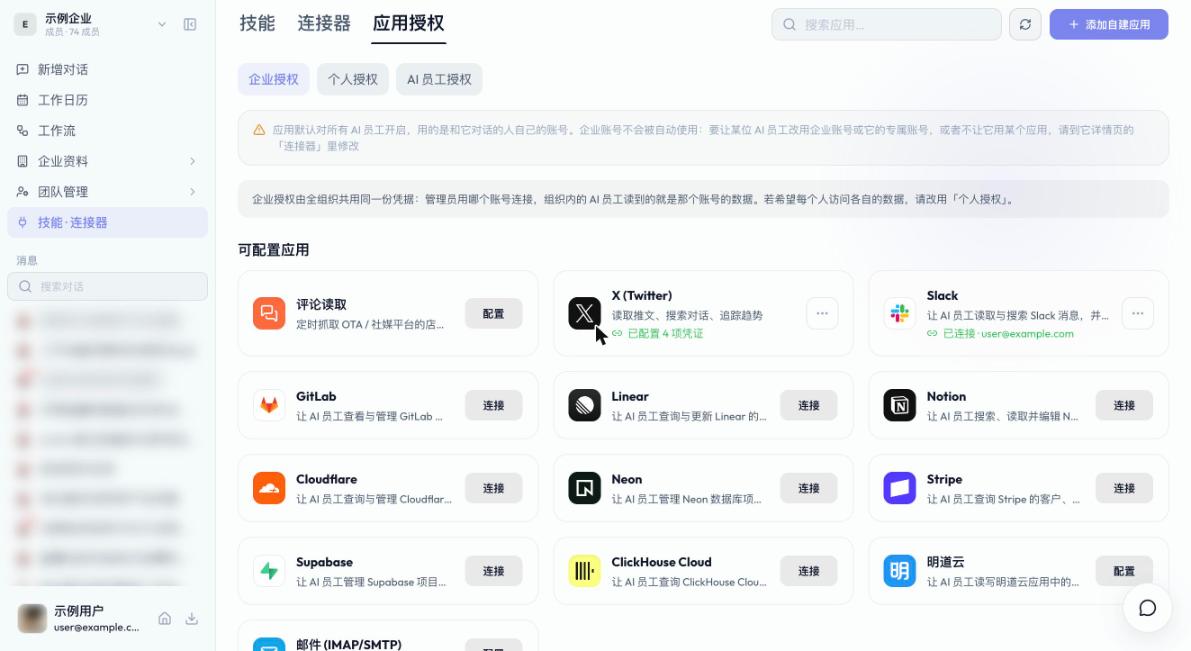
Which apps you can connect
What the page actually lists is authoritative, and it differs between environments and over time. The list as of November 2026 in production:
- Available at both levels: X (Twitter), Mingdao, Email (IMAP/SMTP), and the apps that use redirect-based authorization: GitLab, Linear, Notion, Cloudflare, Neon, Stripe, Supabase and ClickHouse Cloud.
- Only under Organization Authorization: Review Reader.
- Only under Personal Authorization: Kissflow, Gmail Mailbox, Google Calendar, Google Drive, Google Sheets, Google Docs, Google Slides and Google Forms.
- Currently under Not Enabled in production (listed at both levels, with grayed-out cards): Asana, HubSpot, Gitee, GitHub and BigQuery. Slack is also in this group until the organization enters its own Slack credentials; see Connect the Slack App.
- Coming Soon: Feishu, Atlassian, Salesforce, Gemini, LinkedIn, Shopify, Instagram, YouTube, Reddit, TikTok, Odoo ERP, Square POS, Alibaba.com, Outlook, Airtable, Meta Ads Manager, Ahrefs, Similarweb, Dropbox and Zapier.
For a system that is not on the list, you can connect it as a custom app (see below), or add your own MCP on the Connectors page under Skills & Connectors (see Add an MCP Connector).
Apps that need credentials
Click Configure to open a dialog with an illustrated Setup Guide on the left and the credential fields on the right. Under the dialog title it says whose credentials these are (Shared by Organization or Yours). After filling them in, click Save Configuration. Credentials are stored encrypted and are not shown again after saving.
- Email (IMAP/SMTP): generic email access. Any mailbox that supports IMAP/SMTP can be connected (Gmail, Outlook, QQ Mail, Exchange and so on). Fill in 6 fields: Email Address; Email Password (Use an app-specific password instead of your main password, which you generate in your email provider's account security settings); IMAP Server (for example imap.gmail.com; use whatever your email provider gives you); IMAP Port (Usually 993 (SSL)); SMTP Server (for example smtp.gmail.com; use whatever your email provider gives you); SMTP Port (Usually 587 (STARTTLS) or 465 (SSL)). You can find server addresses and ports by searching your email provider's help docs for "IMAP settings".
- Mingdao: enter just one Access Token. Create it in Mingdao under "Settings → Authorization & Access → Personal Access Token". Tokens expire, so after expiry you need to create a new one in Mingdao and replace it here.
- X (Twitter): create an app in the X Developer Portal (choose OAuth 1.0a for authentication and select read and write permissions), then fill in the four values API Key, API Key Secret, Access Token and Access Token Secret.
- Kissflow (Personal Authorization): fill in Account ID, Account domain, Access Key ID and Access Key Secret, all found under My settings → API authentication in Kissflow. It is read-only, for looking up approval documents such as expense reports and purchase orders, and invoice attachments.
- Review Reader (Organization Authorization): under Review Source Platforms, select Trip.com, Agoda, Booking.com and Tripadvisor, and enter your property's homepage link on each platform. After saving, the system periodically fetches public reviews so that Alice can do sentiment analysis and suggest marketing topics.
Prerequisites
- In the left sidebar, go to Skills & Connectors → switch to App Authorization at the top of the page.
- Each of the three levels has its own view/configure permission, which an organization admin grants separately in Role Management:
- Organization Authorization: connect and manage apps at the organization level, with one set of credentials shared by the whole organization
- Personal Authorization: connect and manage your own personal authorizations
- AI Employee Authorization: connect a dedicated account for a specific AI employee
- Your role needs at least one of these permissions for this page to appear in the sidebar. Once inside, you see only the levels you have permission for; if there is only one, the page shows no switcher. If you created an AI employee yourself, you can see the AI Employee Authorization level even without that permission, so you can connect accounts for AI employees you created.
- With view-only permission, the button on a card is a grayed-out View Only and cannot be clicked.
Connect an account
- Go to App Authorization and choose Organization Authorization or Personal Authorization at the top.
- Find the app you want to connect (you can use Search apps). A connected app shows a green status line under its name: if the connected account can be identified it shows "Connected · account", and otherwise it shows its own status text (such as IMAP/SMTP credentials configured or Drive connected via MCP). If authorization has a problem, a Reauthorization Required, Expired or Incomplete Authorization tag appears next to the name, and the line below changes to the matching message (such as Authorization is no longer valid. Please reconnect., Expired. Please reconnect. or Incomplete authorization: reconnect and select all permissions). Apps that are not connected yet have a Connect or Configure button on the right.
- For apps that use redirect-based authorization, click Connect. For apps that can distinguish read-only from read/write (Gmail and the Google apps, Slack, and custom apps with a Read/Write Scope filled in), a Choose Authorization Scope dialog appears first. Pick read-only or read/write (read/write is the default) and click Continue. For apps that do not distinguish them (such as GitLab, Notion, Linear and other preset apps with redirect-based authorization), you go straight to the other site and authorize with read/write access. After authorization you return to this page automatically. For other apps, click Configure, fill in the credentials and save.
- Once connected, the right side of the card shows only a "⋯" (More Actions) menu, which holds Permission Settings, Reconnect / Reconfigure, Disconnect and other actions.
Connecting is only the first step. By default an app is enabled for all AI employees and uses the account of the person chatting with it; the organization account is not used automatically. To make an AI employee use the organization account or its own dedicated account, or to stop it from using an app, go to the Connectors tab on its detail page and change the switch and Account to Use; see Configure an AI Employee.
Connect a dedicated account for an AI employee
- At the top of App Authorization, choose AI Employee Authorization.
- Find the app and click Manage. The dialog lists the AI employees you can configure and their connection status.
- For an AI employee, click Connect Dedicated Account (or Enter Dedicated Token / Enter Dedicated Credentials) and complete the authorization. After connecting, check the account shown; if it is wrong, use "⋯" on that row to Disconnect and start over.
- Go back to the Connectors tab on this AI employee's detail page and set Account to Use for this app to Use its dedicated account.
The AI employees you can configure are the ones you created yourself, plus those within your management scope when your role has AI employee authorization configuration permission. Apps marked Dedicated Account Not Supported can only use the speaker's own account or the organization's shared account. For apps marked No Authorization Needed, click Manage to set tool permissions separately for each AI employee.
Tool permissions, disconnecting and reconnecting
- For a connected app, click the "⋯" (More Actions) on the right of the card → Permission Settings to set each tool to Allow, Require Approval or Deny. If you chose read-only for the authorization scope, write-type tools cannot be called.
- In the "⋯" (More Actions) on the card you can Reconnect or Reconfigure, and also Disconnect. After disconnecting, AI employee capabilities that depend on this app become unavailable, and the saved credentials are cleared. For some apps, disconnecting cannot automatically revoke the authorization on the other side. The page then tells you to remove it manually on that service's authorization management page (for some apps the notice includes a direct button); otherwise the authorization stays valid in that system. The same applies when you disconnect under AI Employee Authorization. Gmail and the Google apps share one Google authorization: if the same Google account is still connected to other Google apps (including under AI Employee Authorization), disconnecting one only disconnects that one and does not revoke the authorization on Google's side; the authorization is revoked only when you disconnect the last one.
- When you disconnect Google Drive under Personal Authorization, any Google Drive-synced knowledge bases you created become regular knowledge bases and stop syncing automatically (files already synced are kept), and reconnecting later does not restore the link. The confirmation dialog lists the affected knowledge bases.
Custom apps
For a system that is not on the list, you can connect its MCP service as a custom app.
- Your role needs Edit Custom Apps permission (to add and edit custom apps). Only with this permission does Add Custom App appear in the top right of the page.
- In New Custom App, fill in:
- App Name;
- App ID: lowercase letters, digits, underscores and hyphens only, up to 64 characters; it cannot duplicate a built-in app, an existing custom app or an MCP connector in the organization, and it cannot be changed after creation;
- MCP Endpoint URL; you can click Auto-Detect: if detection succeeds, the authentication settings are filled in automatically, and if you need to change them, click Adjust Manually;
- Authentication Method: OAuth 2.0, Bearer Token, No Authorization Needed or Customer Token Passthrough. With OAuth you also fill in the Authorization URL, Token URL, Client ID and so on, and enter the Callback URL shown in the dialog in the other service's admin console.
- Click Create. A custom app's card is marked Custom and is visible at both the Organization Authorization and Personal Authorization levels; the "⋯" menu has Edit App and Delete App. If you change the Authentication Method, MCP Endpoint URL, Client ID, Client Secret, Authorization URL, Token URL or Revocation URL while editing, a This change will require all members to reauthorize prompt appears before saving. After you confirm, every member's connection to this app becomes invalid and each person must reconnect (if you switch to No Authorization Needed, all authorizations are cleared directly and nobody needs to connect afterward). For an OAuth app whose Client ID you change, the dialog also warns that Octok can no longer revoke the authorizations members previously granted in the other system, so members must remove them on that system's authorization management page themselves.
App authorization: FAQ
- How do I connect email? If you use Gmail, go to Personal Authorization, click Connect on Gmail Mailbox and complete the redirect authorization. For other mailboxes (or to share one mailbox across the whole organization), use Email (IMAP/SMTP): click Configure on it under Organization Authorization or Personal Authorization, and enter the email address, an app-specific password, and the IMAP / SMTP servers and ports, as described above.
- The app I want to connect is under Not Enabled or Coming Soon? It cannot be connected for now (except Slack; see Connect the Slack App). If you need it urgently and the service offers an MCP server, connect it as a custom app.
- I connected a third-party app but the AI employee still cannot use it? Go to the Connectors tab on its detail page and check that the app switch is on and that the account is connected for the option chosen under Account to Use (for example, if you chose Use the organization's shared account, it must be connected first under Organization Authorization).
- An AI employee says an app is "temporarily disabled and will recover automatically"? The app's service returned errors repeatedly in a short time, so the platform pauses calls to it for a short while (up to about half a minute each time) and then resumes automatically. You do not need to reconnect or reauthorize; just ask again a bit later. The pause applies only to your own organization, and errors in other organizations do not affect you. If it keeps happening, the app's own configuration is probably the problem (for example, the required permission is not enabled in the other service's admin console), so ask the admin responsible for this app to check.
- A card shows Reauthorization Required, Expired or Incomplete Authorization? Click Reconnect and authorize again. For incomplete authorization, select all permissions on the other service's authorization page.
- I cannot see Organization Authorization? Viewing and configuring organization authorization are not granted by default. Ask an organization admin to grant them in your role.