Model Settings and Switching Models
Which models your organization enables and which one is the default; an AI employee's default model; how to switch models in a chat; and which model is finally used
Last updated:
Model Settings Overview
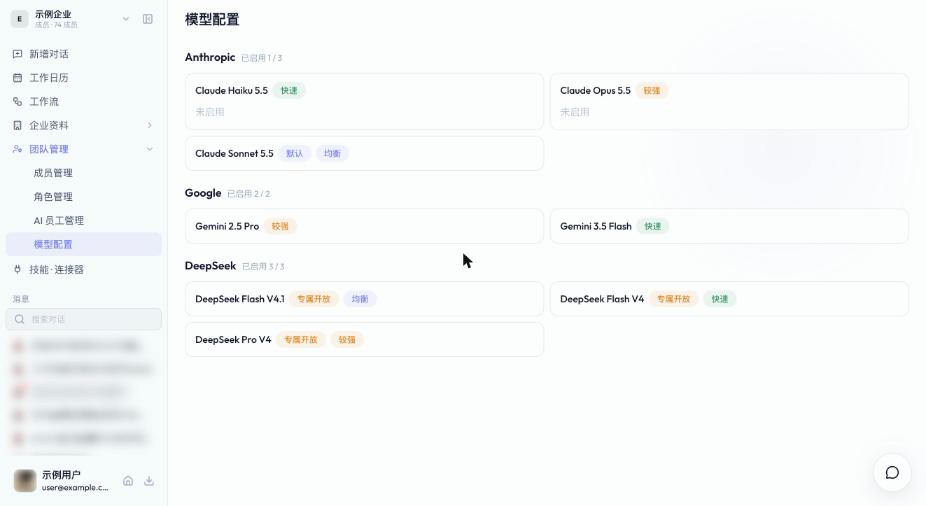
The models in the platform catalog are whatever the Model Settings page shows. The catalog changes as the platform adds models, and some organizations also get Exclusive models. The catalog online in 2026-11: Anthropic's Claude Haiku 5.5 (Fast), Claude Sonnet 5.5 (Balanced) and Claude Opus 5.5 (Powerful); Google's Gemini 3.5 Flash (Fast) and Gemini 2.5 Pro (Powerful).
Choices narrow down level by level: the platform provides a model catalog → your organization enables some of those models in Model Settings and picks one default → each AI employee picks its own default model on its details page → members can still switch temporarily in the chat box. Every level can only choose from the models your organization has enabled.
Page Overview
Prerequisites for Model Settings
- To open the Model Settings page, your role needs view permission for Model Settings.
- To enable or disable models and set the default model, you need manage permission for Model Settings. With view permission only, the page just lists the models, with no switches and no Set as Default.
- Enabling, disabling and setting the default are done by people with manage permission; everyone else can only pick from the already enabled models in a chat.
- To set the model for a specific AI employee, that employee must be within your manageable scope; see Access Permissions.
How to Configure Models
Enable models and set the default for your organization
- In the left sidebar, go to Team Management → Model Settings.
- Models are grouped by provider, and each group title shows how many are enabled out of the total. A model name may carry a tier label: Fast, Balanced or Powerful. A model marked Exclusive is one the platform opened for your organization specifically. Models that are not enabled show Not Enabled.
- Click the switch on the right of a model to Enable or Disable it. The change is saved immediately. Your organization must keep at least one model available, so the last switch cannot be turned off (the message says Keep at least one model available).
- Click Set as Default on an enabled model, and it gets the Default label. If you disable the model that is currently the default, the default automatically moves to the first remaining model.
Set the model for an AI employee
- Open the AI employee's details page → Basic Info.
- In Model, choose one of the models your organization has enabled, or choose "Follow default provider (current: …)", which means the organization default model. If you are not sure, keep "Follow default" and let the admin configure it centrally.
- Click Save.
Switch models during a chat
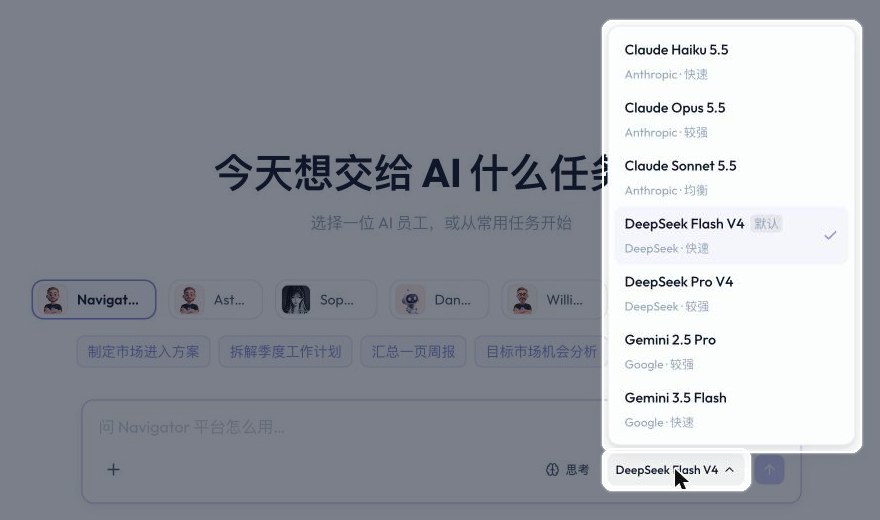
Use the model selector at the bottom right of the chat box, next to the send button. The options are the models your organization has enabled.
When you chat in Octok, the model for a conversation is chosen in this order of priority, from highest to lowest:
- The model you manually picked in this conversation;
- The model set in this AI employee's Model field;
- The organization default model.
The model is locked when the first message of the conversation is sent. New sessions use it by default, a model picked manually in the session takes priority, and sessions that have already started are not affected. In other words, if you change an AI employee's model or the organization default model, conversations already started do not change; start a new conversation to use the new setting.
Model Settings FAQ
- A model is missing from the model list in chat? It has not been enabled in Model Settings. Ask someone with manage permission to enable it.
- A newly released model on the platform does not show up? If your organization has never changed its enabled list, all models in the platform catalog are available by default. Once it has been changed, models added afterward (including Exclusive ones) are not enabled automatically; turn them on in Model Settings.
- Which model is used in channels such as Slack? There is no model switcher in channels:
- For channels without Allow Anonymous Access, the model set in this AI employee's Model field is used, or the organization default model if it follows the default;
- Channels with Allow Anonymous Access turned on are treated as customer-facing. They ignore Model and use the organization default model (or, if the AI employee acting as customer service has a Customer-Facing Model set in the Customer Service Platform, that one).
- Channel conversations do not lock the model, so after you change a setting, the next message uses the new model.
- Who is affected when a model is disabled? It takes effect for the whole organization: the model no longer appears in the chat model list and can no longer be chosen as an AI employee's model. AI employees that had chosen it, and conversations already started with it, automatically fall back to the next level (the AI employee's model or the organization default model).