Manage Files in a Knowledge Base
Upload and organize files in a knowledge base, learn the rules for Google Drive sync libraries, and let AI employees search the library.
Last updated:
Managing Knowledge Base Files Overview
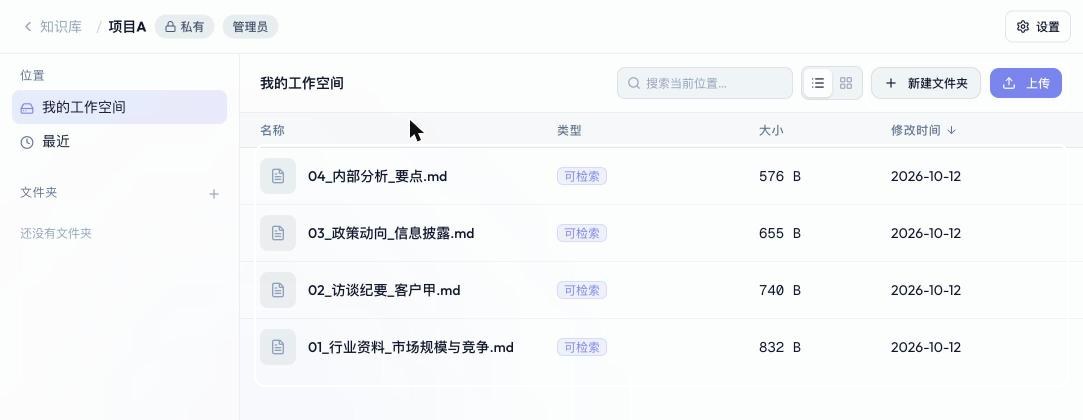
Opening a knowledge base brings up a file manager: locations and folders on the left, and the list of files in the current location on the right. Material you upload here can be searched by AI employees that have been authorized.
Page Overview
Prerequisites for Managing Knowledge Base Files
- You must be able to see the library: the Company Public Knowledge Base, libraries visible to everyone in the company, or libraries where you or your role has been added as a member. If you open the link of a library you cannot see, it shows Knowledge base does not exist or has been deleted (with Back to Knowledge Base List below it); ask the library's admin to add you.
- Your role in the library is shown next to the title: Admin, Can Edit or Read-only. Uploading, creating folders, renaming, moving and deleting require Can Edit or Admin; Read-only can only browse, preview and download.
- Uploading files checks credits: if both your personal quota and the organization's shared quota are used up, you cannot upload.
Page Layout
- Top: the knowledge base name, visibility (Company-wide / Private) and your role. If you are the library's Admin, there is also Settings on the right, where you can change the name, visibility and members or delete the library, and also see which AI employees can search it and the library's change log (see Create a Knowledge Base). Sync libraries also have a sync info bar below.
- Left Locations: My Workspace (the root folder), Recent (files uploaded to this library in the last 14 days, regardless of folder), and the Folders tree. On a narrow screen, click the menu icon at the top left (Expand folder sidebar) to open it.
- Toolbar on the right: Search current location… (searches files in the current location by file name), a switch between List View / Icon View, New Folder and Upload.
- Columns in the file list: Name, Type (shows Searchable or Storage Only), Size and Modified; click a column name to sort. There are 20 files per page, and you can page through at the bottom when there are more.
Upload Files
- Go to the folder where you want the files (or stay at My Workspace).
- Click Upload, and in the Upload Files dialog drag files in or click to choose them; you can select several at once. Each file must be no larger than 100 MB. Most file types can be uploaded, but two kinds are rejected: executables (such as exe), which are judged by file content, so renaming the extension does not help; and files such as PDFs, Office documents, images, archives, audio and video whose content does not match their extension (for example another file renamed to .pdf).
- As each file is selected, it is marked Searchable or Storage Only:
- Searchable: PDF, Word (doc/docx), Excel (xls/xlsx), PPT (ppt/pptx), TXT, CSV, Markdown (md), images (jpg/jpeg/png/gif/webp/svg), HTML (html/htm), JSON and EML; AI chats can search their content;
- Storage Only: other types and files with no extension; The file is only stored; it can be downloaded and shared, but the AI will not search its content.
- Click the "Upload N files" button at the bottom to submit. For files that failed, click the retry icon to their right to upload again.
Folders
- Click New Folder in the toolbar (it is created in the current location), or click the plus sign next to Folders on the left (New top-level folder).
- In the folder tree on the left, a folder's "⋯" menu has Rename, New subfolder here and Delete; for a folder in the list on the right, the "⋯" has Rename and Delete.
- Folders created here can go at most three levels deep; creating deeper ones shows Folder depth limit reached. When Include Subfolders is checked for a Google Drive sync library, the library's folders follow the folder hierarchy in Drive and are not limited to three levels.
- Deleting a folder also deletes the subfolders and files inside it, and the confirmation dialog lists the counts first.
- Folders cannot be moved at the moment; only files can be moved.
File Actions
- Click a file name to open the preview; if it shows Online preview is not supported for this file type, download it and view it locally.
- The "⋯" at the end of a file row: Download, Move to (choose a target folder or Root) and Delete. With the Read-only role, only Download is available.
- With edit permission, you can also drag a file onto a folder on the left to move it.
- Deleted files cannot be recovered.
Google Drive Sync Libraries
- All files come from the Drive folders you selected, as a Read-only mirror: you cannot manually upload, create folders, move or delete inside the library.
- A sync library syncs automatically every 2 hours (on even hours, Beijing time). The sync info bar at the top shows the Last Synced time; with the Can Edit or Admin role, you can also click Sync Now to sync immediately, and Read-only members do not have this button.
- Only parsable files such as PDF, Office documents, images, Markdown and TXT can be synced. Other types such as video, audio and archives are skipped, are not synced in, and are not counted in the unsynced notice below.
- A single file synced from Drive can be at most 50 MB; Google Docs, Sheets and Slides are exported as Office files when synced, and the exported file can be at most 10 MB. Files over the limit are not synced in and appear under Skipped in the unsynced file details. This is not the same as the 100 MB limit for manual uploads.
- Synced files are likewise marked Searchable or Storage Only by the extension in the file name (for the list, see the Upload Files section above). For PDF, Word, Excel, PPT, CSV, Markdown and jpg/png/gif/webp image files in Drive that have no extension in their name, the sync adds an extension after the name based on the file type recorded by Drive (for example
QuotebecomesQuote.pdf; a name whose part after a dot does not look like an extension, such asABC PTE. LTD, also counts as having none), and treats them as Searchable. The following keep their original name and are marked Storage Only: plain text, HTML and other types with no extension in the name; files whose name already has an extension that is not on the list (for example.log); and files whose actual content does not match the type recorded by Drive. - After you rename a file in Drive, the file name in the library changes with it at the next sync (or when you click Sync Now), and Searchable / Storage Only is judged again from the new name; the library still holds the original file, and no extra copy appears.
- When Sync paused: the owner has insufficient credits, new files will not be synced in is shown, the creator of this sync library has insufficient credits; new files resume syncing after credits are topped up.
- When the sync info bar shows Sync stopped: the library creator's Google Drive authorization has expired and needs to be reauthorized (the Status under Knowledge Base Settings → Auto Sync is Reauthorization Needed), syncing has stopped, and files that were not synced will not be retried. The library's creator needs to go to App Authorization → Personal Authorization, reconnect Google Drive, and then click Sync Now.
- If the creator disconnects Google Drive under Personal Authorization, the sync libraries they created become standard libraries and no longer sync automatically; files already synced are kept. Reconnecting later does not restore them, and you need to create a new sync library.
Files That Were Not Synced
When some files were not synced in, a yellow notice appears on the sync info bar saying how many files were not synced (those without download permission are counted separately). Click the notice (it ends with View Details) to expand the details, and click again (it becomes Collapse) to close them. Anyone who can open this library can see it. The same details are also under Knowledge Base Settings → Auto Sync, where Status shows Some Files Not Synced; when not a single file was synced in, it shows Sync Failed.
The details are grouped by reason and list file names (at most 20 across all groups, with a note at the end saying how many more there are):
- No download permission: the library creator's Google account can see these files but cannot download them (it is only a viewer, or the owner disabled downloads). Ask the file owner to make this account an editor, or to allow viewers to download in the sharing settings, then wait for the next automatic sync, or ask someone with the Can Edit / Admin role to click Sync Now.
- Content does not match extension: the file content does not match its extension; the file may be corrupted or its extension may have been changed. It will not be retried until the file is updated in Drive. Open it in Google Drive to check, fix it and upload it again, or change it to the correct extension.
- File inaccessible: Google says the file does not exist; it may have been deleted, moved or unshared.
- Temporarily rate-limited by Google: no action needed.
- Other reasons: if it keeps failing, contact your admin.
- Skipped: the file exceeds the size limit (50 MB per file, or 10 MB after export for Google Docs, Sheets and Slides) or its format is not supported; it will not be retried until the file content is updated.
While syncing is working normally, apart from Content does not match extension and Skipped, these files are retried automatically on every sync, and they sync in by themselves once the problem is fixed. For files you do not need, move them out of the Drive sync folder or delete them, and they are no longer counted after the next sync.
Let an AI Employee Search This Library
The knowledge base itself has no switch for "which AI employees it is open to"; you turn it on from each AI employee's side:
- Open the AI employee's details page → Knowledge Base tab.
- In Searchable Knowledge Bases, check this library.
- Click Save. After saving, its next answer looks up material within the new scope.
Only the AI employee's creator, and members individually named in its Manageable Scope, can save here (when the manageable scope is set by department/position and the system role Admin is checked, organization admins count too); everyone else can only view, and the checkboxes are greyed out. The libraries you can choose from are the ones those admins can see. After saving, the "N / M AI employees can search" on the knowledge base card changes accordingly.
To see which AI employees can currently search this library: the library's Admin opens Knowledge Base Settings → AI Employees That Can Search and sees the list and each AI employee's admins. The list is view-only, and the switch is still changed on the AI employee's side using the steps above; see Create a Knowledge Base.
Managing Knowledge Base Files FAQ
- You uploaded a file but the AI says it cannot find it? First confirm the file is marked Searchable and not Storage Only; then confirm that this library is checked under the AI employee's Searchable Knowledge Bases and saved.
- Why is there no upload button? Your role is Read-only, or this is a Google Drive sync library.
- A sync library is missing files, or is always empty? First look for a yellow unsynced notice on the sync info bar, open it, and follow the fix for each group; see Files That Were Not Synced above.
- Upload shows file_upload.size_error? A manually uploaded file cannot exceed 100 MB (Drive sync libraries have a different limit; see the Google Drive Sync Libraries section above).
- Who deleted or changed a file? The library's Admin can find out who did it and when under Knowledge Base Settings → Change Log (switch to Files to see files only); everyone else should ask the library's admin to check.
- Can deleted files be recovered? No. Deleted files cannot be recovered, and the Change Log only records changes and cannot restore them.