Share Files Delivered by AI Employees
Generate a no-login link for web pages, PDFs and other files delivered by an AI employee, and make one link always show the latest version of the same report
Last updated:
Sharing Delivered Files Overview
Files an AI employee delivers in a conversation (web reports, PDFs, Markdown, images and so on) can get a share link and a QR code. The recipient does not need to log in and can open it in a desktop or mobile browser.
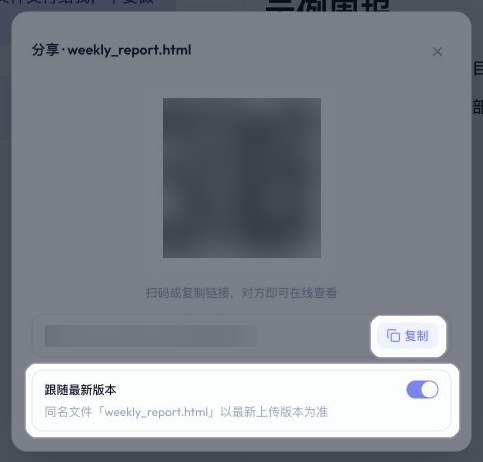
Every file has two kinds of links, and the Follow Latest Version switch in the share dialog decides which one is shown:
- Following link (switch on, the default): when this AI employee later delivers a file with the same name to you, the same link automatically shows the newest one. This suits a daily report generated by a scheduled task: you send the link once, and the recipient always sees the latest content.
- Fixed link (switch off): shows only the current file and does not change when new files appear later.
Prerequisites for Sharing Delivered Files
- You must be able to open the file's preview in the conversation.
- Following links are available only for files the AI employee delivered to you in your own conversation. Other files get fixed links only; the switch is greyed out, with the note This file does not support following the latest version; only the current file can be shared as a fixed link below it.
Share a File
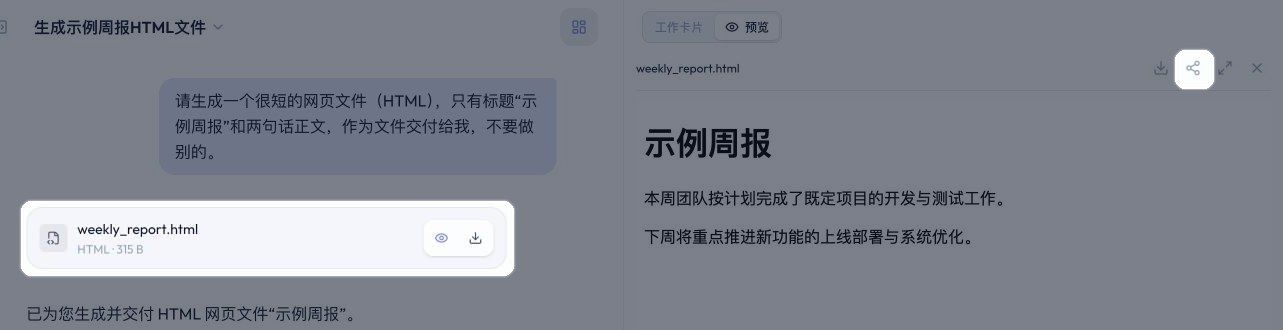
- In the conversation, click a file delivered by the AI employee to open the preview on the right.
- Click Share at the top of the preview. The dialog shows the following link by default, Follow Latest Version is on, and a note below says that same-named files follow the most recently uploaded version.
- Have the recipient scan the QR code, or click Copy and send them the link.
No matter which version of a file you click Share on (an earlier version, or a version a scheduled task delivered in another conversation), you get the same following link.
Share Only the Current File
Turn off Follow Latest Version in the share dialog: the dialog switches to the fixed link for this file, with the note The link always shows this current file below, and new files later do not affect it. If you do this on an earlier version, what gets shared is that version.
Turn the switch on again to go back to the original following link. The switch only changes which link the dialog shows; it does not change links you have already sent: following links keep following, and fixed links stay fixed.
What counts as "the same file": the same AI employee, delivering to the same person, with exactly the same file name (case-sensitive), no matter which conversation it was delivered in. If the file name includes a date (for example a new "Daily_Report_2026-11-09.html" each day), each day's file is a different file and the link does not follow. When you generate daily reports with a scheduled task, state in the task requirements "always save as the same file name", for example "Daily_Report.html". To learn how to create scheduled tasks, see Configure an AI Employee.
Not Yet Supported When Sharing Delivered Files
- Revoking or deleting a share link you have already sent, or making a following link stop updating.
- The share page does not run scripts inside web files, so interactive charts that depend on scripts may not display.
- When a link is posted to Feishu, DingTalk or WeCom, the preview card cannot show the file name.
- Files the AI employee copied into the platform from Google Drive, email attachments and the like: they can be previewed and downloaded (only the person who asked it to copy them can download), but a share link cannot be generated yet.
Sharing Delivered Files FAQ
- The following link shows a different file from the one I am previewing? A following link shows the most recently delivered same-named file. If you are previewing an earlier one, the link shows the newest one; to share only the one you are previewing, turn off Follow Latest Version.
- The following link shows a same-named file that I uploaded myself? Following looks for the newest same-named file in your conversations with this AI employee, and an attachment you uploaded with the same name counts too. The next time it delivers a same-named file, the link switches to the one it delivered.
- After clicking Share, the dialog shows Link expired and says the shared file does not exist? If the file is one the AI employee copied into the platform from Google Drive, an email attachment or the like, sharing is not supported at the moment. Download it first and send it yourself.
- The switch is greyed out? This file was not delivered by the AI employee to you in your own conversation, so it can only be shared as a fixed link.
- Will a link I sent change by itself? A following link will: anyone with the link sees same-named files delivered later. A fixed link will not. Any link you copied before Follow Latest Version was on is a fixed link.
- I do not want people with the link to see later same-named files? Once a following link has been sent, there is currently no way to stop it updating or to revoke it. Use different file names for files made for different audiences, or send only fixed links.
- The newest file being followed was deleted? The link automatically switches to the newest of the remaining same-named files, including links already sent. Only when all same-named files are deleted does the link stop opening, and it shows the new file again once this AI employee delivers a same-named file.
- What does the preview card show when I post the link in Slack? The card title is the shared file's name, with an OCTOK product image; it does not reveal the file's content. When the link has expired, the card shows only OCTOK's generic introduction. Slack caches cards, so if the same link was posted before, the card may still look the old way. Feishu, DingTalk and WeCom do not currently support showing the file name.