Company Info
The company information in your organization profile: who can view it, who can edit it, what each field means, and how AI employees use it.
Last updated:
Company Info overview
Company Info is your organization's basic profile: company name, registration number, type, address, website, industry, business description, and key contacts.
Company Name is the organization's name. It is what the organization switcher at the top left and the My Organizations page display, so changing it here changes it there too. The organization icon is the first letter of the company name; uploading a logo is not supported at the moment.
Page overview
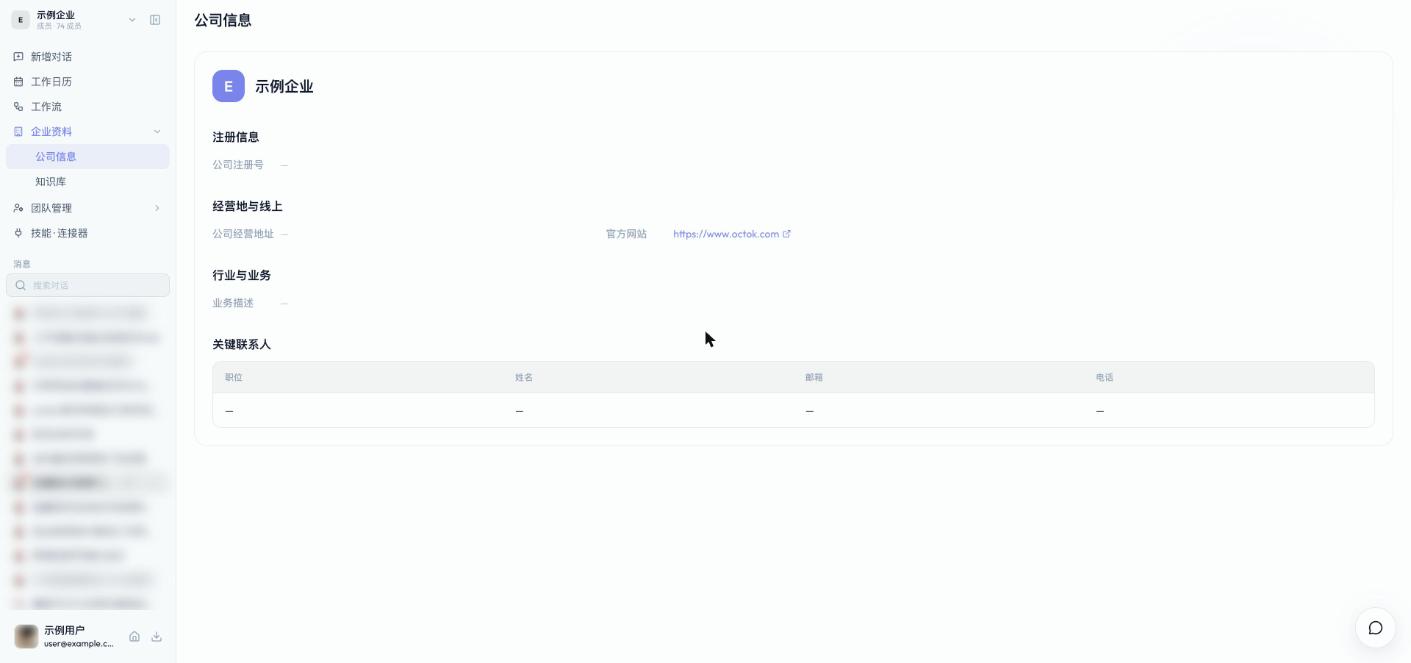
Before you start
- Entry point: Organization Profile → Company Info in the left menu.
- Viewing requires the Company Info View permission on your role. Without it, this menu item does not appear.
- Editing requires the Company Info Edit permission. Without it, the Edit button does not appear at the top right of the page.
- The system role Admin has both permissions; Member can only view by default. To grant them to someone else, tick them for that person's role in Role Management. See Members & Roles.
What's on the page
- Top: the company name, with small tags below it for Industry and Company Type (shown only if filled in).
- Registration Details: Company Registration Number.
- Location & Online Presence: Business Address and Official Website (clickable; a URL without an http prefix opens as https).
- Industry & Business: Business Description.
- Key Contacts: a table with the columns Position, Name, Email, and Phone. If there are none, it shows No contact information yet.
Fields left empty show "—".
Edit company info
- Click Edit at the top right to open Edit Company Info.
- Fill in each section:
- Registration Details: Company Name (required), Company Registration Number, Company Type;
- Location & Online Presence: Business Address, Official Website;
- Industry & Business: Industry, Business Description;
- Key Contacts: click Add Contact to add a row, then fill in Position, Name, Email, and Phone. Use the trash icon at the end of a row to delete it.
- Click Save; a Saved successfully message appears at the bottom right. Clicking Cancel or closing the dialog discards your changes.
Length limits: Business Description allows 5,000 characters; every other field (including each cell of a contact) allows 500 characters, with a counter next to the input. You cannot save while Company Name is empty; you will see Company name cannot be empty.
Do AI employees use company info?
Yes. Company info is not injected into every chat automatically, but every AI employee can look it up during a conversation when needed, for example when someone asks "What does our company do?" or "What is our website?":
- It can look up the company name, registration number, type, industry, website, address, and business description.
- The names, emails, and phone numbers under Key Contacts are provided to it only when the person chatting with it has the Company Info View permission. It cannot get contacts for people without an Octok identity, such as visitors in customer-facing channels.
- An AI employee working as customer service can also use this basic information to answer visitors who ask "Which company are you?". See Customer Service Platform.
- A person with the Company Info Edit permission can also ask an AI employee in a chat to edit the company info or key contacts, and the change shows up on this page. If someone without this permission asks, the AI employee cannot make the change.
So the clearer your Business Description, the better grounded an AI employee's answers about your company will be.
Company Info FAQ
- I can't see the Edit button. Your role does not have the Company Info Edit permission. Ask an organization admin to add it in Role Management.
- Saving shows an error, but some changes took effect? The basic profile and the key contacts are saved in two consecutive steps. If the contacts step fails after the basic profile was saved, the profile changes are already in effect and the contacts stay as they were. The dialog does not close; click Save again.
- An AI employee says it cannot get the contacts? The person chatting with it does not have the Company Info View permission, or the chat is in a customer-facing channel.