Connect an AI Employee to Slack
Set up an AI employee as a Slack bot so colleagues can message it directly or use it in channels. For Slack app authorization, direct-message notifications and the language of direct messages, see Connect the Slack App.
Last updated:
This page is about turning an AI employee into a Slack bot. The Slack card under App Authorization (the card that shows Not enabled. Contact your administrator to set it up, where the organization enters a Client ID / Secret), letting an AI employee read and write Slack with your account, sending in-app notifications to you as Slack direct messages, and which language those direct messages use are separate topics. See Connect the Slack App.
Connect Slack Overview
After you connect an AI employee to Slack, people in your Slack workspace can message the bot directly or @mention it in a channel to get work done. Each AI employee is connected to Slack on its own, using a Slack App that you create in Slack yourself.
Prerequisites for Connecting Slack
- The AI employee must be within the scope you can manage; see Access Permissions. Without manage permission you can see the setup, but Configure and Edit cannot be clicked and there is no Remove.
- You need to create a new App in Slack and install it in your workspace; the setup guide has the complete steps. The first step of the guide reminds you: do not choose either of the two recommended template cards on the Slack home page (AI agent, Starter app); under "Or start your own way", click From a manifest
- While this AI employee serves as customer service in the Customer Service Platform, the Slack row is marked Incompatible with Customer-Facing Use and cannot be newly connected.
Steps to Connect Slack
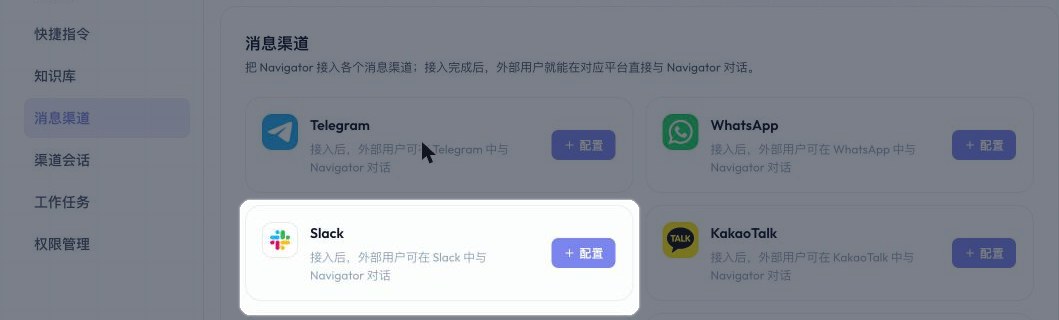
1. Open the setup wizard in Octok
- Open the AI employee details page (Team Management → AI Employee Management → click the card) and switch to the Messaging Channels tab.
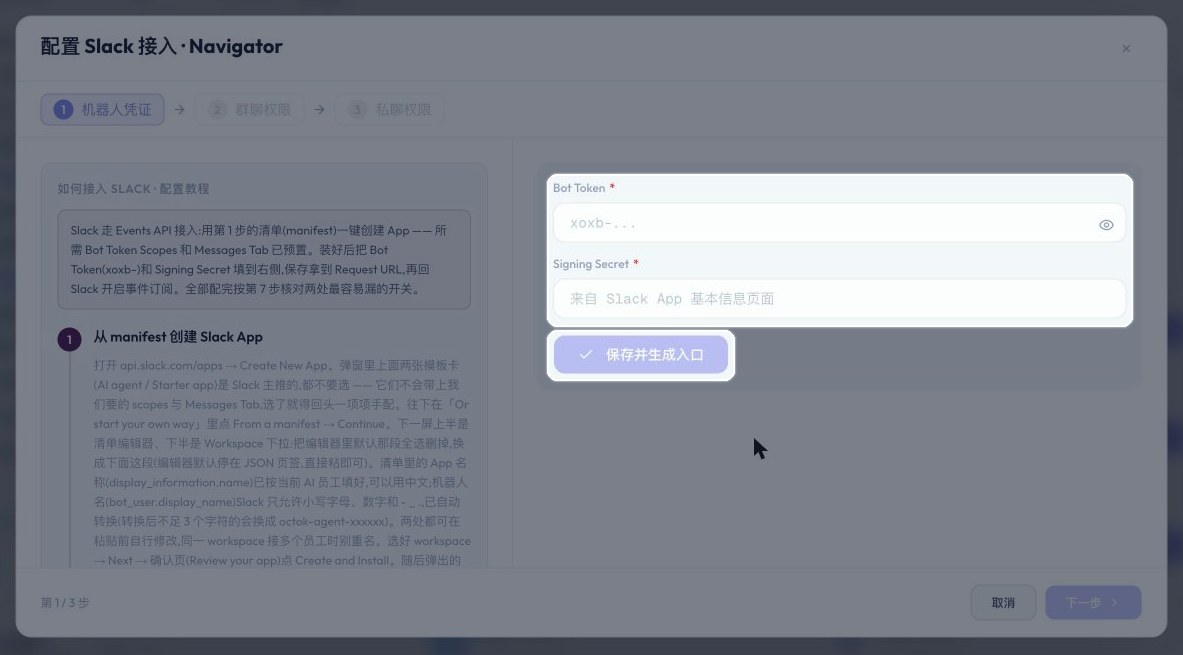
- Click Configure on the Slack card to open the setup wizard. It has three steps: Bot Credentials → Group Chat Permissions → Direct Message Permissions.
- In the first step, the setup guide is on the left and the form is on the right (on a phone the guide is collapsed by default; click Expand next to Setup Guide to open it). The guide contains an App manifest; click Copy Manifest to copy it. The App name in the manifest is already filled in for this AI employee, and the bot name has been converted to a form Slack accepts.
2. Create the App in Slack and get the credentials
Follow the setup guide. The key points are:
- Open api.slack.com/apps → Create New App. Do not choose either template card at the top. Further down, under "Or start your own way", click From a manifest, replace the default content in the editor with the manifest you just copied, choose your workspace, and click Create and Install.
- Go to OAuth & Permissions and copy the Bot User OAuth Token (it starts with xoxb-).
- Go to Basic Information → App Credentials and copy the Signing Secret.
3. Save in Octok, then set up Slack event subscriptions
- In the first step of the wizard, enter the Bot Token and Signing Secret and click Save and Generate URLs. After a successful save, it shows that the Request URLs have been generated, with two addresses below, each with a Copy button: Events Request URL (Event Subscriptions) and Interactivity Request URL (Interactivity).
- Go back to your Slack App → Event Subscriptions, turn on Enable Events, paste the event subscription Request URL, and wait for it to show Verified.
- Under Subscribe to bot events, add app_mention, message.im, message.channels and message.groups (we also recommend tokens_revoked and app_uninstalled), then click Save Changes. If you skip this step, the bot receives no messages at all.
- Optional: to use button-style interactions (such as satisfaction ratings or option buttons), go to Interactivity & Shortcuts, turn on Interactivity, and enter the Interactivity Request URL.
- Check two switches: in Event Subscriptions, both app_mention and message.im are listed; under App Home → Show Tabs, the Messages Tab is turned on and the option that allows users to send messages in the Messages tab is checked (if it is not checked, the direct message box is read-only and nothing can be typed). After you change scopes or events, Slack asks you to reinstall the App; just reinstall it when prompted.
4. Set group chat and direct message permissions
Next can only be clicked after the credentials are saved successfully.
- Click Next to go to Group Chat Permissions: choose the skills, external system connections, knowledge bases and tools it can use in Slack channels.
- Then go to Direct Message Permissions: choose what is available by default in direct messages and decide whether to Allow Anonymous Access.
- Click Save; both steps are saved together.
Skills, external system connections and knowledge bases are all unchecked by default. Unchecked means they cannot be used in Slack; skipping these two steps without saving has the same effect. For the meaning of each item, see Channel Permissions.
Use It in Slack
- Direct message: send the bot a message directly.
- Channel: @mention the bot in a message. When you continue the conversation in a thread, you also need to @mention it; it ignores messages that do not @mention it.
- Conversations: it always replies in the thread of your message, and one thread is one conversation. A new message starts a new thread and carries the content of the most recent conversation (one with activity within the last day).
- Account binding: in direct messages, if Allow Anonymous Access is off, a person who has not yet bound an Octok account first receives an Octok account binding link (valid for 15 minutes), and that message is not processed. Open the link, sign in with the Octok account of a member of this organization, click Confirm Connection, then go back to Slack and send the message again. If the link has expired, send another message to get a new link. After binding, the person must also be within the Who Can Use scope of this AI employee to message it. If they are not (including being paused or having access revoked), they receive a message saying they have no permission to use it, and that message is not processed. After binding, usage in direct messages is charged to you, apps set to Use the Speaker's Own Account use your account, and any special direct message permission set for you also takes effect. However, which skills, knowledge bases and tools it can use still follows this channel's direct message permissions (see Channel Permissions), not your permissions in Octok.
- Channels do not identify people: anyone in a channel can @mention it without binding an account. It uses the channel's shared permissions, and usage is charged to the person who set up this channel.
- Scheduled tasks (the channel's tool scope must include the scheduled task tools): in direct messages, a person with a bound account can ask it to create, view, change or delete scheduled tasks (changes first show a confirmation card and take effect only after you confirm; a task created in a group can have its content and time changed in a direct message, but the results are still sent to the original group, and changing the delivery location of a group task is not currently supported). In channels, only a person who has a bound account and is within its manageable scope can ask it to create tasks; they cannot view, change or delete them. Tasks cannot be created in direct messages with anonymous access turned on.
Edit or Remove
- Once connected, the Slack row shows the bot name and the number of people it has talked to. People with manage permission can also see a summary of the group chat and direct message permissions (how many skills are enabled, and so on).
- In the "⋯" menu (More Actions) on the right, click Edit to open the same wizard. The first step only shows the connection status and the two Request URLs; you can change permissions in the last two steps.
- In the "⋯" menu, click Remove to disconnect. The Bot Token configuration is cleared.
Connect Slack FAQ
- The bot does not respond after you followed the guide? In most cases, event subscriptions or the Messages Tab are not set up correctly. Check each item in part 3, step 5, and confirm you reinstalled the App in Slack after making changes.
- Saving shows Binding failed. Check the Token and Signing Secret? Check that the Bot Token is the one starting with xoxb- and that the Signing Secret was copied in full. If it also says this Slack App is already used as the organization's built-in Slack, you entered the App currently used by the Slack card under App Authorization. The two cannot share an App, so create a new App as the guide describes and enter that one. The original App can only be used for a channel after the organization replaces the Slack card's credentials with another App or clears them.
- Want to change the Bot Token or Signing Secret? You cannot change them under Edit. Remove the connection first and then connect again.
- Edit shows Disabled? The connection is disabled automatically when the App is uninstalled in Slack or the token is revoked, and the bot no longer replies. To restore it, Remove the connection and connect again.
- The bot stops replying when you send many messages? In the same direct message or channel, if more than 10 messages arrive in a row with less than 1 minute between them, the later ones are ignored; wait 1 minute and send again. The whole channel also has a message limit (about 1,000 messages, reset only after 24 hours in a row without new messages); once it is reached, the bot stops replying as well.
- Want to connect several AI employees to the same workspace? Create one Slack App for each AI employee, and do not reuse the same App name or bot name.
- Which model is used in Slack? There is no model switch in channels. For the rules, see Model Settings.