Work Calendar
View the scheduled tasks you created on a calendar: each day's results, upcoming runs, and a filter by AI employee. To pause, delete, or create tasks, go to the AI employee detail page.
Last updated:
Work Calendar overview
Work Calendar lays out the scheduled tasks you created for your AI employees on a calendar: which days they ran, whether each run succeeded or failed, and when they run next. This page is view-only. To pause, resume, delete, or create scheduled tasks in the interface, use the Work Tasks tab on the relevant AI employee's detail page (see Configure an AI Employee). You can also ask the AI employee in a chat to create, edit, or delete a task.
You create a scheduled task by asking an AI employee in a chat to do something "every day / every week / at a certain time". After that, you can also ask it in a chat to change its own task (name, content, time or repeat rule, and whether the result is sent back to the current chat). The confirmation card lists only the items that changed (old, then new; for long content, the lines to be removed or added are marked line by line, and when original content would be deleted the card first warns you how many lines will go). The change takes effect only after you confirm it. A paused task stays paused after editing; tasks that have ended or been canceled cannot be edited. You cannot edit tasks inside a group chat. For a task created in a group, you can change its content and time in a private chat, but the result is still sent to that group (changing the delivery location of a group task is not supported yet). You can also ask the AI employee in a chat to delete a paused task.
Page overview
Before you start
- Entry point: Work Calendar in the left menu. Your role needs the Work Calendar View permission (the system role Member has it by default).
- The calendar shows only scheduled tasks you created; tasks created by colleagues are not visible. It also covers only AI employees you have permission to use.
- Scheduled workflow runs are not shown here. See Run a Workflow.
Page layout
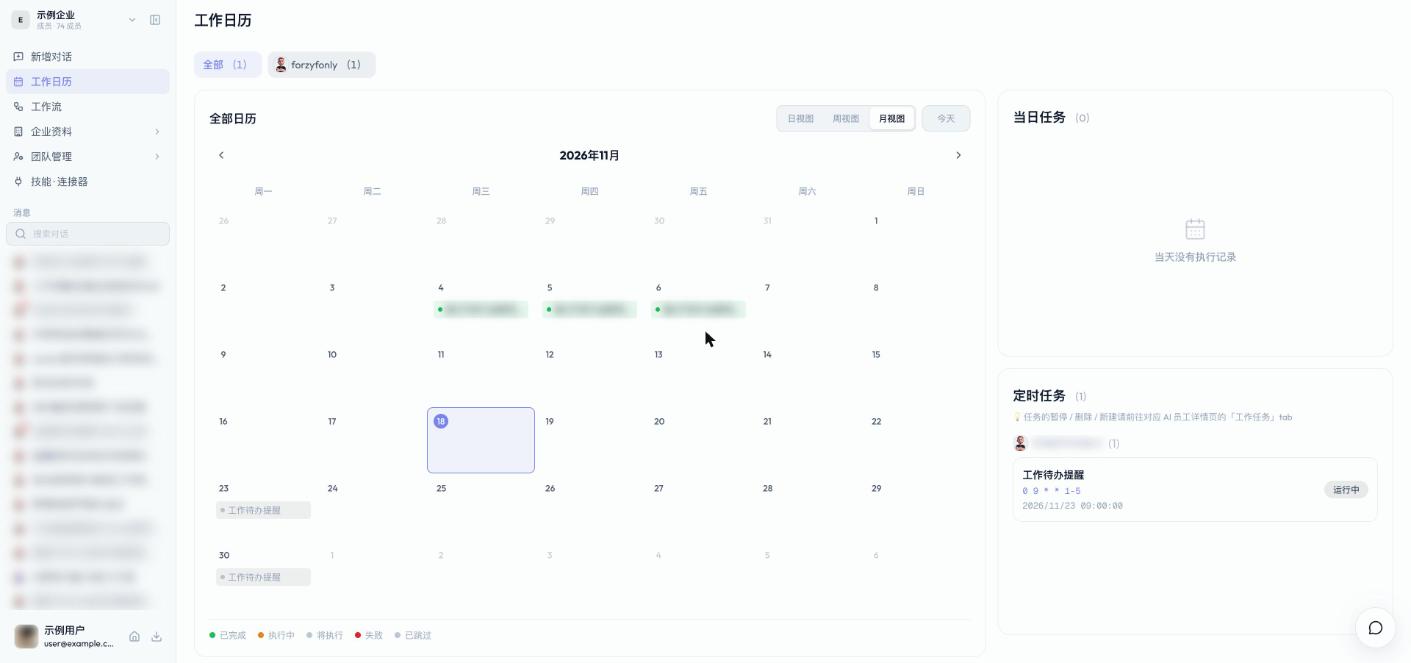
- Filter at the top: All (the number in parentheses is the count of active and paused tasks), followed by one tag per AI employee. An AI employee with no active or paused task does not appear. Click an AI employee to see only its tasks; click again to return to all.
- Calendar on the left: the title is All Calendars, or "XX Work Calendar" when you filter by an AI employee. At the top right, switch between Day / Week / Month (Month is the default); Today jumps back to today, and the arrows below turn the page. The legend at the bottom of the month view shows: Completed, Running, Upcoming, Failed, Skipped. Running means the scheduled time has arrived and the AI employee is still working on this run; when it finishes, the status becomes Completed or Failed.
- Daily Tasks at the top right: the runs for the selected day, ordered by time. Each entry shows "AI employee name · task name" plus its status. Today is selected when you open the page. In the month and week views, click a day to switch to it, and click it again to deselect (you will see Select a date to view that day's tasks); the day view shows the current day. A day with no records shows No runs on this day.
- Scheduled Tasks at the bottom right: all active and paused tasks under the current filter, grouped by AI employee. Each card shows the task name, its frequency (one-time tasks show the run time), the next run time, and Active or Paused. Tasks that have ended or been canceled are not listed.
View the result of a run
In Daily Tasks, click an entry whose scheduled time has passed to open its details: run time, status, and Duration, followed by:
- Success: the AI employee's reply for this run (if nothing was recorded, you see Task completed, but no detailed result was recorded).
- Failed: the Error message.
- Skipped: This run was skipped because of insufficient credits.
- Running: not finished yet, so you see No result yet; open it again after it finishes to see the result.
Entries marked Upcoming have not run yet, and clicking them does not open details. Each time a task succeeds or fails, you also receive a result notification in Notifications (none for a skipped run). See Personal Settings.
Work Calendar FAQ
- Where are the pause and delete buttons? The calendar is view-only. Go to that AI employee's detail page, then Work Tasks. The Scheduled Tasks card also shows this hint.
- Why can't I see a scheduled task my colleague created? A scheduled task is visible only to the person who created it, both on the calendar and on the AI employee detail page.
- Why does a run show Skipped? That run did not execute, but the task itself does not stop; the next run happens as scheduled. The usual reason is that credits ran out (see Credits, Plans & Usage). A task created in a group chat is also skipped when its creator is no longer a manager of that AI employee; the pop-up shows the same insufficient-credits message in that case, so check management permissions first.
- Why is an AI employee missing from the filter tags? It has no active or paused task created by you, or you no longer have permission to use it.
- Why are some tasks not shown when I have many? The calendar loads at most the 50 tasks you created most recently (including ended ones).