View an AI Employee's Channel Sessions
The Channel Sessions tab on the AI employee details page: view its conversations on Telegram, Slack and other channels session by session, including tool calls and errors (run failures and send failures). Read-only
Last updated:
Channel Sessions Overview
After an AI employee is connected to messaging channels, outside users and colleagues talk to it on Telegram, Slack, WhatsApp, WeChat, KakaoTalk, embedded website widgets and web chat links. The Channel Sessions tab lists these conversations session by session. Select one to see who said what, which tools it called, whether they succeeded or failed, and whether its replies were delivered. Use it to troubleshoot "it did not reply", "it replied incorrectly", and "it replied but the other side did not receive it".
You can only view sessions here; you cannot reply or take over. To reply, go to the channel itself. For human takeover of customer-facing sessions, use the Customer Service Platform (see customer-service).
Prerequisites for Channel Sessions
- Entry point: on the AI employee details page, the Channel Sessions tab under Messaging Channels in the left tabs.
- You need permission to use this AI employee. Without it, you cannot see this tab, even if you have sent it direct messages in a channel yourself.
- The sessions you can see = sessions shared within the organization + your own direct messages:
- Group chats (including Slack threads) and anonymous sessions (embedded website widgets, web chat links, and channels with anonymous access turned on): all members with permission to use this AI employee can see them, and the header is marked Shared.
- Direct messages from bound members (channels without anonymous access): only that member can see them, and the header is marked Only You. Organization administrators and the creator of the AI employee cannot see other people's direct messages either.
- Direct messages from people who are not bound members are not listed.
- Sessions on Webhook channels are not listed in the first release.
How to Read Sessions
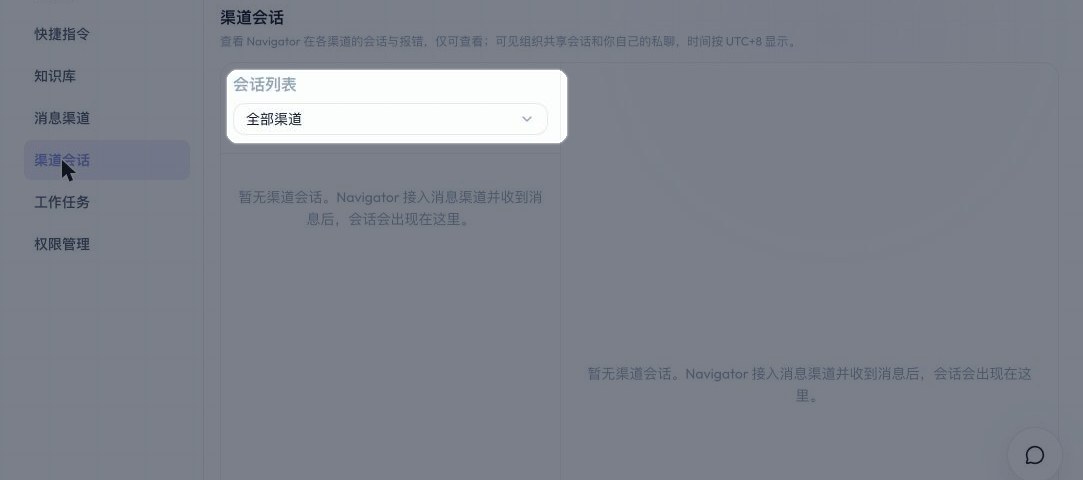
- Session list: on the left, sorted by the time of the last message, newest first. Each row has the channel icon, the counterpart (the other person's name for a direct message, the group name for a group chat, a visitor identifier for an anonymous session), a small icon for the session type (hover to see Direct Message / Group Chat / Anonymous), and the time and summary of the last message. Today's sessions show the hour and minute, yesterday's show Yesterday, older ones show month-day, and ones from a previous year include the year.
- Filter by channel: use the dropdown at the top of the list to choose All Channels or one type of channel. If the selected channel has no sessions you can see, click View All Channels to go back to all.
- Unread dot: a session you have not opened has a red dot at the end of its row, and it disappears once you open it. The dot is only your own state; whether others have opened the session does not affect yours.
- Session content: shown on the right in time order, with a date divider where the day changes. The user's messages are on the left. In group chats, every speaker is labeled with their name and external account, and bound members carry a Member badge. A round of output from the AI employee is on the right in a light gray bubble. For a long session, the most recent messages are shown first, and scrolling up loads earlier ones. Times are shown in your time zone.
- Tool calls: only the tool name and "Succeeded / Failed" are shown, with the error description after a failure; the parameters and returned content of the call are not shown. When several tools were called in one round, they are folded into one line, "Used N tools", which you can open to see them one by one; a line that contains a failure is expanded by default.
- Two kinds of errors:
- Run failed: a model error or a runtime error, so there was no reply for this round. The session states the reason, and the session is marked Run Failed in the list.
- Send failed: it generated a reply, but the channel did not deliver it (the channel rejected it, the connection failed, credentials are missing, and so on). The reply text is shown as usual with the reason below it; if the reply was split into several messages, it says which part was not delivered. The session is marked Send Failed in the list.
- If any round in a session had an error, the marker in the list stays, even if later rounds are normal. A failed tool call is only shown inside the session and is not marked in the list (it is common for the AI employee to succeed with another approach after a failure).
- The layout adapts to the window width: on a narrow screen only the list is shown first, click one to enter the session content, and click Session List at the top to go back.
- The list and the content are updated when you enter the tab, switch sessions or switch filters; they do not refresh automatically while you stay on the page.
Not Yet Supported in Channel Sessions
- Replying to or taking over sessions here.
- Searching sessions, exporting, error statistics, and message translation.
- Viewing sessions on Webhook channels.
Channel Sessions FAQ
- Why can't I see a colleague's direct messages with it? Direct messages can only be seen by the member themselves, and administrators cannot see them either. To troubleshoot a problem in a colleague's direct messages, ask that colleague to open this tab themselves.
- I sent it a direct message on a channel with anonymous access turned on. Why can everyone see it? A channel with anonymous access is anonymous for everyone and does not identify members, so the session does not belong to anyone and is shared within the organization.
- Why don't older sessions have a Send Failed marker or a summary? Delivery results and summaries were only recorded after this feature was released, so earlier sessions do not have this information.
- The channel has been disconnected. Are the sessions still there? Yes. You can view them as usual, and the header notes that the channel has been disconnected.
- Is it a send failure if only part of a reply is delivered (for example, KakaoTalk truncates a reply longer than 1,000 characters, or a Slack reply is too long and the other side only receives a notice)? No. Currently these are treated as delivered.