AI Employee Access Permissions
In an AI employee's detail page, under Permission Management → Basic Permissions, set who can see it, who can use it, who can manage it, and how access is revoked
Last updated:
Access Permissions: Overview
An organization role decides which pages a person can open. On top of that, each AI employee has its own layer of permissions that decides who can see it, who can chat with it and who can change its configuration. The two layers stack: even if you have chat workspace permission, if an AI employee is not open to you, you cannot find it or use it in Octok.
The three levels have a fixed containment relationship: anyone who can manage can also use, and anyone who can use can also see. So when the Usage Scope is wider than the Visibility Scope, people who can chat with it will still see it in the list. This does not mean the setting failed.
These three levels govern access inside Octok. In addition, the Usage Scope also governs who can message it directly in channels such as Slack, if they have linked their Octok account: people outside the scope who send a direct message receive a notice that they have no permission to use it, and the message is not processed. Which skills, knowledge bases and tools it can use in a channel is controlled by channel permissions; see Channel Permissions. In a channel's public channels (group chats), the speaker is not identified, and everyone gets the same permissions, unaffected by these three levels; direct messages with Allow Anonymous Access turned on also do not identify people.
Prerequisites for Access Permissions
- Your role needs the AI Employee Management permission to open Team Management → AI Employee Management.
- Only people in this AI employee's Management Scope can see the Permission Management tab.
- Defaults for a new AI employee: Visibility Scope is Off — nobody; Usage Scope is Only me; Management Scope is Specific departments / positions, with the system role Admin ticked. So the creator and organization admins can see, use and manage it, and no one else can see it until you change the settings.
- The creator can always see, use and manage the AI employee they created; narrowing a scope never removes the creator.
- What you tick under Specific departments / positions are the roles from Role Management.
Steps to Set Access Permissions
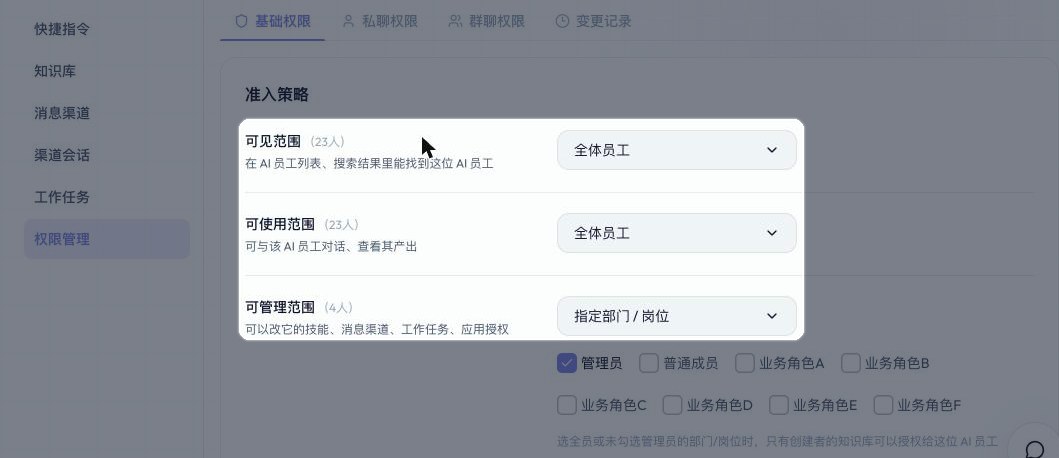
Set the Three Scopes
- Open the AI employee's detail page (Team Management → AI Employee Management → click the card), switch to the Permission Management tab and stay on the Basic Permissions sub-tab.
- Under Access Policy, set the three levels. Next to each level's title is the number of people it currently covers (after a change that is not yet saved, it says Updates after saving):
- Visibility Scope: Can find this AI employee in the AI employee list and search results.
- Usage Scope: Can chat with this AI employee and view its output.
- Management Scope: Can change its skills, messaging channels, work tasks and app authorization.
- For each level, choose from the dropdown:
- All Employees
- Specific departments / positions: then tick roles, at least one
- Specific people: search for people in Search colleagues by name or email and add them, at least one
- Only me: available only for Usage Scope, meaning only the creator can use it
- Off — nobody
- Under When Access Is Revoked, choose what happens when a member is removed from the scope:
- Suspend use (default): when a member is removed from the scope, their use is suspended first, and can be restored later
- Revoke completely: when a member is removed from the scope, their right to use is revoked immediately
- Click Save. To drop this round of changes, click Discard Changes.
When you change the Management Scope to Off — nobody, a Turn Off Management Scope dialog asks you to confirm once more before saving: once it is off, only the creator can change it back. An AI employee with no creator cannot choose Off — nobody.
Restore Suspended / Revoked Members
Suspended or revoked members are listed under Currently suspended / revoked members. Click Restore and confirm, and the member is added back to the Usage Scope and their right to use is restored.
- When the Usage Scope is Only me or Off — nobody, the button is unavailable; open up the scope first.
- If the scope was granted by Specific departments / positions, you cannot restore one person on their own: add their position, or switch to Specific people.
- Adding a person back to the scope and saving also restores them automatically.
View the Change Log
The bottom of the Basic Permissions page shows Recent Changes; click View All to see the full record. You can also switch straight to the Change Log sub-tab.
Treat People Differently: Put a Permission Table in the Prompts
The three scopes only decide "who can use it". If you want one AI employee to give different depth of content to different people (finance sees the full numbers, sales sees only summaries, and only legal can have it draft contracts), you do not need to change any permission setting: whenever an AI employee handles a message, it knows which Octok member sent it (name, email and user ID). Just write the rules as a table keyed by email and give it to the AI employee.
Put the table in its Prompts, or in a Knowledge Base linked to it: a small table that must apply every time goes in the prompts; a large table that is looked up on demand goes in the knowledge base (when it is in a knowledge base, the AI employee must first retrieve the table before it will follow it). A member's email can be seen in the Member Management list; write the table by email:
| Allowed | Not allowed | |
|---|---|---|
| alice@example.com | View full collections data, draft contracts | — |
| bob@example.com | View collections summaries | View individual transaction details, draft contracts |
| Anyone not in the table | Answer public questions only | Politely decline everything else and say whom to ask for access |
After the table, add two more sentences: "Look up this table by the sender's email shown on each message" and "When the sender is marked as no Octok account identified, treat them as 'anyone not in the table'."
- The AI employee can recognize people who chat in Octok, and people who message it directly in Slack or other channels and have linked their Octok account. In a channel's public channels (group chats), speakers are not identified, so you can only write rules by the speaker's user ID on that platform.
- This table is a set of rules for the AI employee to follow, not a restriction enforced by the platform. For knowledge bases that a person must never read and external systems that a person must never call, you still need to block access with the three scopes on this page, channel permissions (see Channel Permissions) and the knowledge base's visibility scope.
Access Permissions: FAQ
- Save is grayed out? You cannot save if you chose Specific departments / positions or Specific people but ticked nobody; the reason is written below the button.
- On saving, you see This page has been changed by someone else? Someone saved after you opened the page. Choose Overwrite to replace their changes with your version, or Discard Changes to load the latest settings.
- What does the knowledge base note under Management Scope mean? If you choose everyone, or departments/positions without Admin ticked, only knowledge bases owned by the creator can be authorized to this AI employee.
- Can people outside the company see and use this AI employee in Octok? No. The line on the page "People outside the company are never allowed in" refers to these three levels: they can only select members of your own organization, and outsiders cannot see or use it in Octok. To let outsiders chat with it, use a messaging channel: turn on Allow Anonymous Access in the channel's Direct Message Permissions, or have it serve as customer service on the Customer Service Platform; see Channel Permissions.
- A member should no longer use it (for example they left or changed positions)? Remove them from the Usage Scope (or from the department / position they belong to) and save. To make sure they can no longer use it at all, set When Access Is Revoked to Revoke completely in the same save. Both methods also stop them from messaging it directly in channels with their linked account; but public channels do not identify the speaker, so it responds to anyone who @ mentions it. To make it stop receiving messages in a channel, go to the Messaging Channels tab and click Remove on that channel (it applies to everyone; see Connect Slack), or remove it from the channel in Slack.
- If use is suspended, can they still chat with it? No. In Octok, during suspension they cannot chat with it and cannot see existing chats, and tasks you created for it no longer run automatically; the data is all still there and resumes immediately once they have permission again. If they message it directly in Slack or another channel with their linked account, they receive a notice that they have no permission to use it, and the message is not processed; clicking option buttons it sent earlier gets the same notice, and the choice has no effect. Members who were Revoked completely likewise cannot use it. Public channels do not identify the speaker, so @ mentioning it in a channel is handled by the channel's group chat permissions and has nothing to do with suspension here. To restore access, ask someone who can manage this AI employee (someone in its Management Scope) to click Restore under Currently suspended / revoked members, or add you back to the Usage Scope.
- What are Direct Message Permissions and Group Chat Permissions? Those are permissions in messaging channels, under the same Permission Management tab; see Channel Permissions.
- Want a role to be able to open more pages? That is an organization role permission; see Members & Roles.