Customer Service Platform
Activate an AI employee as customer-facing support, and manage conversations, human takeover and deployment channels.
Last updated:
Customer Service Platform Overview
The Customer Service Platform is the system for serving customers outside your organization. The organization picks one AI employee as the customer-facing entry point. Customers who arrive through WhatsApp, Telegram, a web chat link or a website widget are all answered by it, while colleagues review conversations here and take over by hand when needed. An organization can have only one AI employee serving as customer service at a time.
Page Overview
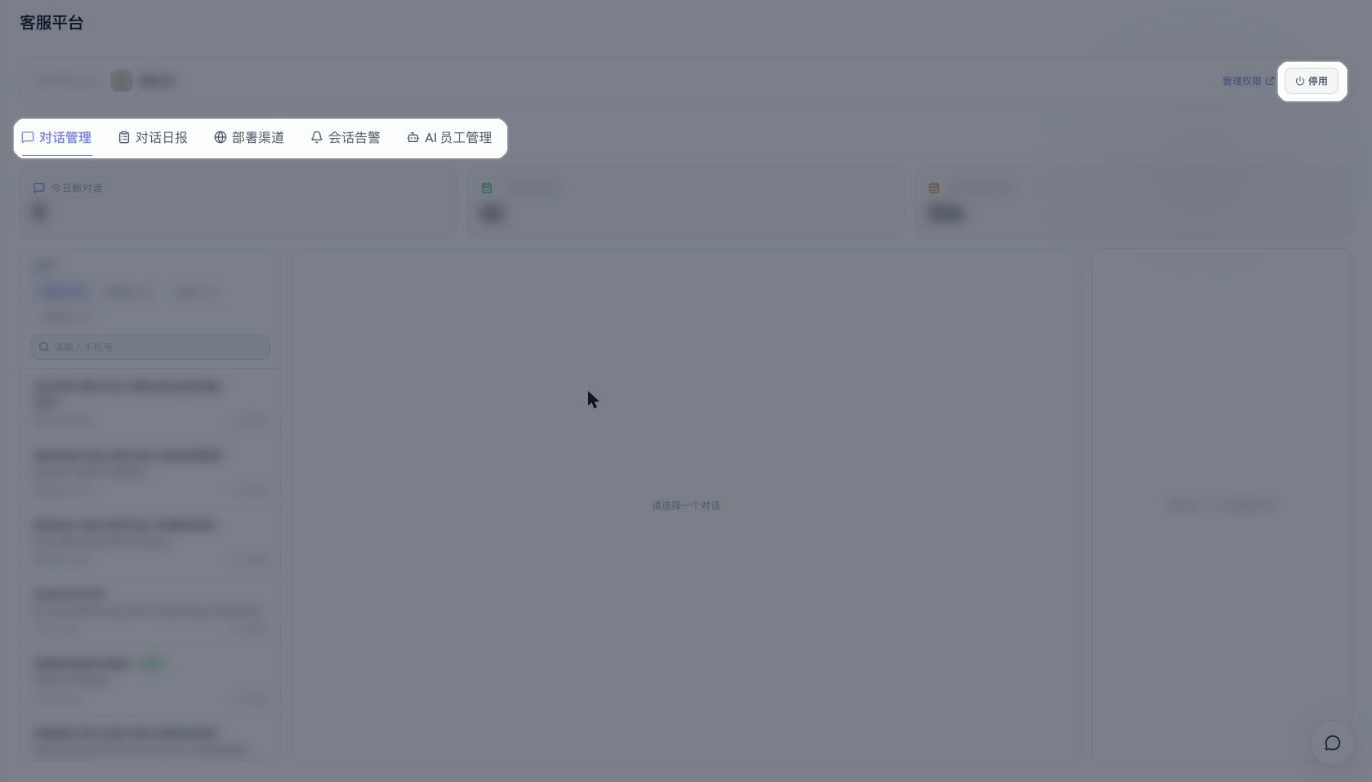
Prerequisites for the Customer Service Platform
- Entry point: Business Apps → Customer Service Platform in the left menu. Your role needs the Customer Service Platform View Permission.
- Activating and deactivating require the Customer Service Platform Edit Permission and manage permission for that AI employee. The Activate and Deactivate buttons are visible to everyone who can open the page, and the request is rejected on submit if you lack permission.
- After activation, you must also be within the AI employee's Who Can Use scope to see the content of the Customer Service Platform. If you are not, the whole page shows only a single message; ask an administrator to add your role under its Permission Management. See Access Permissions.
- People who can use this AI employee can view conversations, take over and reply. Changing the settings in Deployment Channels, Conversation Alerts and Agent Management requires manage permission for it.
Activate
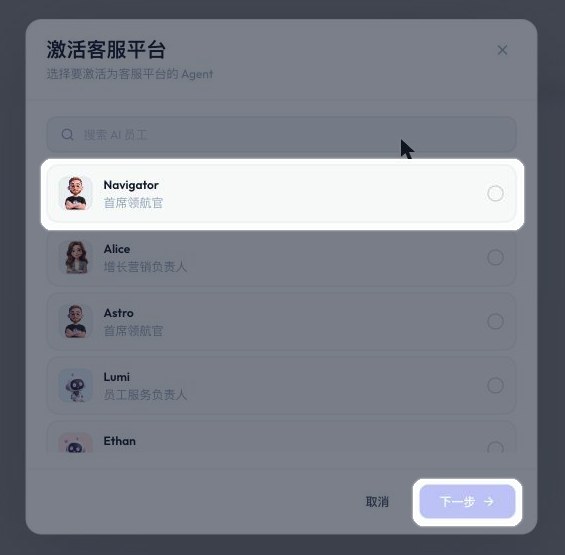
Before activation, the page shows Choose an Agent as the entry point for customers in the customer service back office. Once activated, it handles all visitor inquiries.
- Click Activate to open Activate Customer Service Back Office.
- Choose an AI employee (you can Search Agents) and click Next. The list only contains AI employees you can manage; if there are none, it shows No manageable Agents.
- The system checks whether it still has any messaging channels:
- If it does (disabled ones count too): it shows Remove all messaging channels of this AI employee before activating it as customer service and lists the channels. Click Go Remove Channels to open the Messaging Channels tab on its details page, remove them one by one, and then come back and activate again. This is required because customer service faces unknown visitors, so the knowledge bases and skills a channel can use must be set up again for the customer service context rather than reusing the internal-facing ones.
- If it does not: it shows An AI employee serving as customer service will have memory turned off, conversation analytics turned on, and access to sensitive information restricted.
- Click Confirm Activation.
After activation, this AI employee has memory turned off and conversation analytics turned on. Its built-in tools are narrowed to a few customer-safe ones such as searching knowledge bases, loading skills, sending files and viewing images. When it talks to customers, the platform's built-in queries can only look up the organization's basic information, and cannot look up internal data such as the organization's workflows or customer conversation analytics. Messaging channels that do not support customer-facing use are marked Incompatible with Customer-Facing Use and cannot be newly connected, and Allow Anonymous Access is fixed to on for the channels that are connected (see Channel Permissions). It cannot be deleted while it serves as customer service.
If the page shows This organization has legacy customer-facing configuration waiting to be migrated. Contact platform operations to run it before use, activation is temporarily unavailable until platform operations has handled it.
The Page After Activation
The bar at the top shows Current Customer-Facing Agent and its name. People with manage permission for it also get a Manage Permissions link that goes straight to its permission settings. On the right is Deactivate. Below are five tabs:
Conversation Management
- Three numbers at the top: New Conversations Today, New Conversations in 7 Days and New Conversations in 30 Days.
- The left column is the customer list: filter by All, Needs Takeover, Taken Over and High Intent, and search by phone number. The middle is the conversation. On a wide screen, the right side shows live analysis of this customer (Sentiment, Purchase Intent, Customer Profile); on a narrow screen, click Analysis above the conversation to open it.
- Human takeover: use the switch above the conversation and click Take Over. The AI pauses its replies to this customer and you reply directly in the input box below. Click AI to hand the conversation back. When you are not taking over, the input box area shows AI is handling this autonomously.
- Translation: the Translate switch above the conversation translates the customer's messages into your language. When you reply while taking over, you can write in your language and Preview Translation before sending; the customer only receives the translation (you can also Send Original). Translation is done locally in your browser, and no content is sent to third parties. It requires Chrome 138 or later on a computer, and the first time you use each language pair you need to download its language pack once. The translation switch and Browser Translation Settings only affect what you see yourself.
Daily Reports
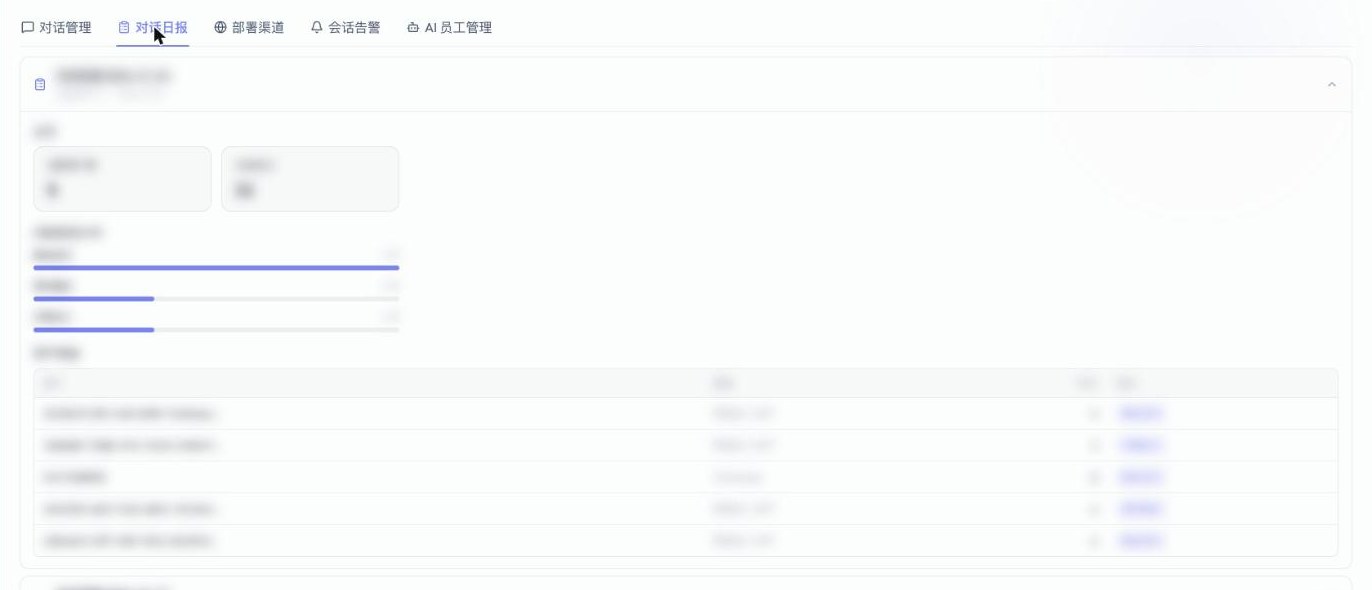
Daily reports are listed by day. Open a day to see the Overview (Active Users, Conversation Rounds, Issue Category Distribution) and User Details (each customer's channel, rounds and issue category). The issue categories are pre-sales inquiry, booking and ordering, order lookup, returns and after-sales, complaint, and chat / other.
Deployment Channels
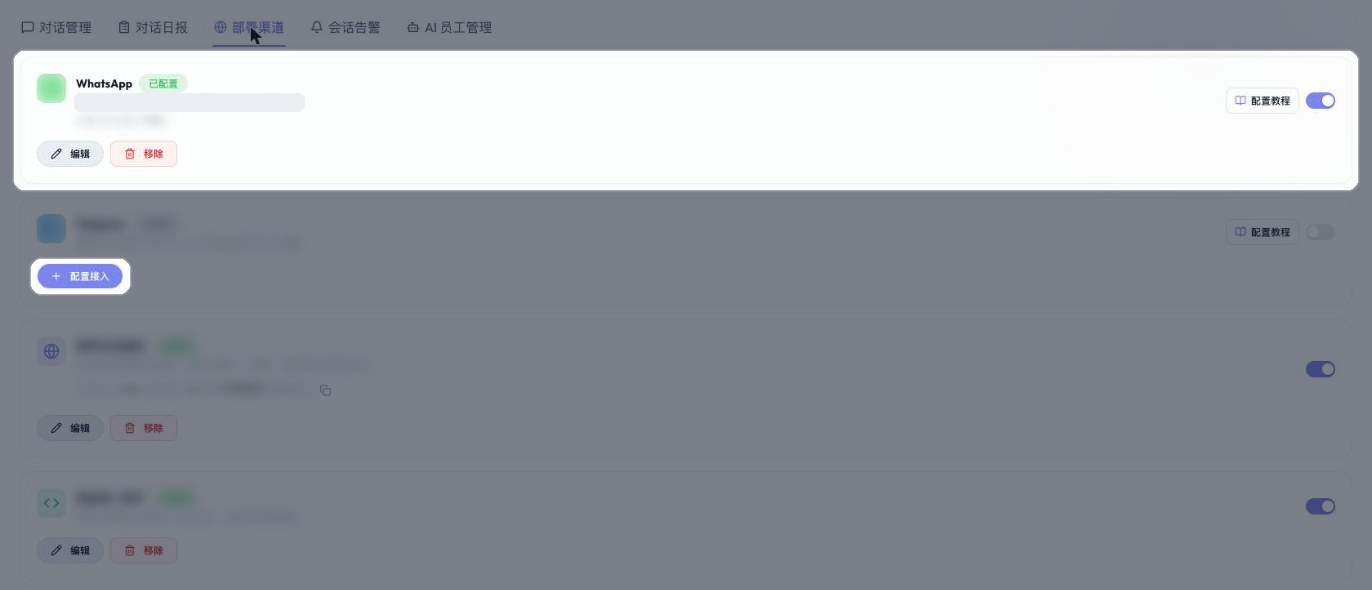
Four cards: WhatsApp, Telegram, Web Chat Link and Website Embedded Widget. The status is Not Configured, Pairing (WhatsApp is waiting for confirmation on the phone), Configured or Disabled.
- For a channel that is not configured, click Set Up. For a configured one you can Edit or Remove it, and the switch on the right enables or disables it. The setup wizard is the same one as under Messaging Channels on the AI employee details page, and its last step sets the scope of knowledge bases, skills and so on that customers can use. The WhatsApp and Telegram cards have a Setup Guide.
- When a card is marked Usage Scope Not Set: Customers can already reach it, but the AI has no knowledge bases or skills available. Click "Edit", go to the last step, set the knowledge bases and skills it can use, and save.
- WhatsApp: prepare a brand-new or idle number dedicated to AI customer service. Do not use a number you use every day. Bind a separate number to each AI employee, otherwise messages get mixed up.
- Web Chat Link: set the Link Path (slug) and Welcome Message, and click Generate Chat Link to get the full link and a QR code. Customers can open it and chat without signing up. Changing the path invalidates the old link.
- Website Embedded Widget: set the Theme Color, Widget Position (Bottom Right / Bottom Left) and Welcome Message, and click Save Widget Settings to generate the Embed Code. Paste it into your website page just before
</body>. After it is created, changes to these settings are saved automatically. The Live Preview beside it changes as you adjust the settings, and customers only see the widget once the channel is enabled. - The widget also has a Customer Identity Integration option: Let customers who are already signed in to your website ask as themselves, and the AI employee can only look up that customer's own data. Your website's developers need to integrate it following the instructions on the page. Changing this option requires the Customer Service Platform Edit Permission. Customers who come in this way are marked Verified in the conversation list.
Conversation Alerts
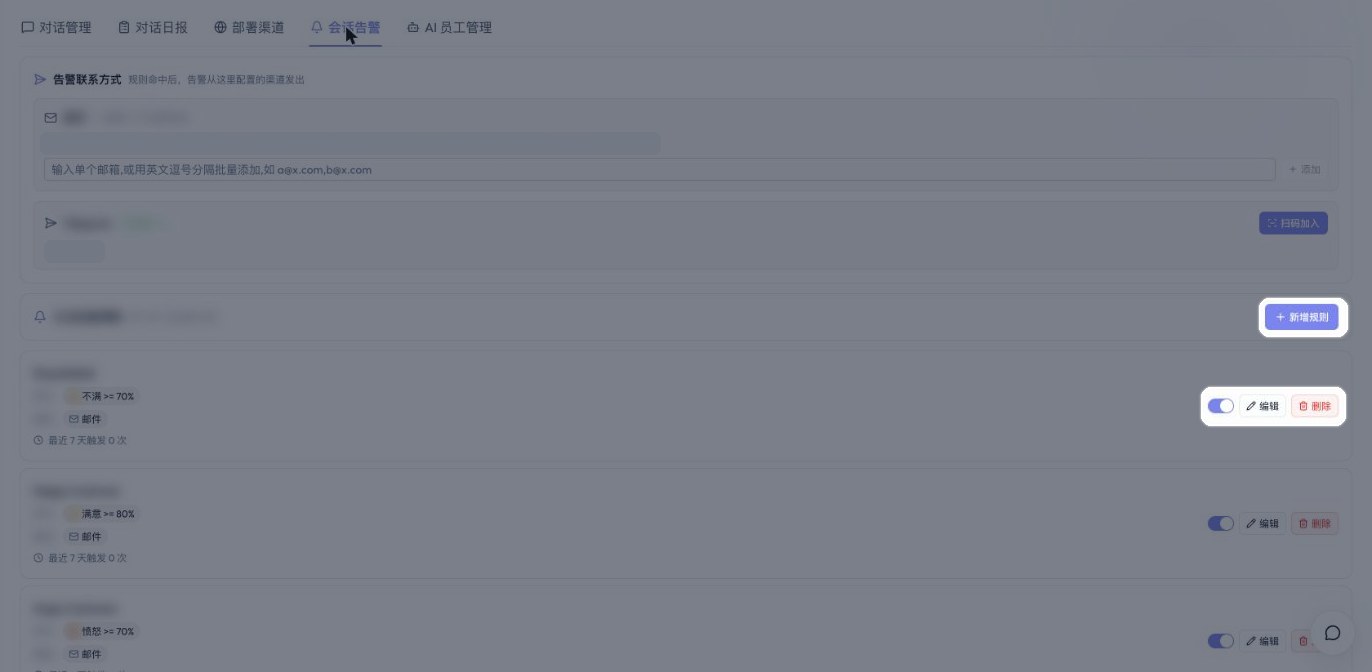
- Alert Contacts: where alerts are sent. You can add an Email recipient address, or Scan to Join the official Telegram bot.
- Conversation Alert Rules: click Add Rule, enter a Rule Name, and choose a Trigger Condition: Sentiment Detection (the intensity of one of Satisfied / Calm / Dissatisfied / Angry is ≥ or ≤ a certain percentage) or Purchase Intent (≥ or ≤ a certain percentage). You can add a cumulative condition (an alert only fires if the same customer triggers it a certain number of times in a row within a few minutes). Check Alert Channels (multiple allowed) and click Save and Enable. Rules can be edited, disabled and deleted.
The AI Employee Management Tab in the Customer Service Platform
In the Customer Service Platform, this tab is called Agent Management. It is not the same place as Team Management → AI Employee Management in the left menu. It has two sections:
- Customer-Facing Model: the model it uses when replying to customers. You can only choose models the organization has enabled, and when none is specified the organization's default model is used. Your choice is saved immediately. When internal colleagues talk to it, it still uses its own Model setting; see Model Settings.
- Persona Prompt: its persona, tone, rules and boundaries. After editing, click Save Settings; to discard your edits, click Undo Changes. It affects all of this AI employee's conversations (not only customer conversations), and takes effect within 30 seconds after saving. It is the same file named PERSONALITY.md in this AI employee's Prompt tab.
Deactivate and Replace
- First go to Deployment Channels and turn off every channel switch that is still on. Deactivating while a channel is still enabled fails, with a message that there are still active customer-facing channels and you must take the channels offline first.
- Click Deactivate at the top. The confirmation box lists the channels that will be deleted along with it; click Deactivate to confirm.
After deactivation: this AI employee's memory, conversation analytics and other settings go back to what they were before activation; all channels it connected in the Customer Service Platform are deleted and must be connected again if you reactivate it later; and the organization temporarily has no customer-facing entry point.
To replace the AI employee serving as customer service: there is no direct replace button. Deactivate the current one first, then choose another one by following the activation steps above.
Customer Service Platform FAQ
- Clicking Confirm Activation shows an error? Check whether you have the Customer Service Platform Edit Permission, whether this AI employee still has channels, and whether the organization already has a customer service AI employee.
- Customers can reach it, but the AI cannot answer anything? Check whether the channel card is marked Usage Scope Not Set. Following the prompt, go to the last step of the wizard, check the knowledge bases and skills, and save.
- The translation switch does nothing or says it is not supported? It requires Chrome 138 or later on a computer, and the first time you use a language pair you need to download its language pack. Takeover and replies are not affected.