Direct Message and Group Permissions in Channels
Which skills, external systems, knowledge bases and tools an AI employee can use in group chats and direct messages on messaging channels; anonymous access; opening up access for a single person or a single group
Last updated:
Channel Permissions Overview
After an AI employee is connected to a messaging channel such as Slack, what it can do in that channel is controlled on three levels:
- Channel baseline: each channel has its own, split into Group Chat Permissions and Direct Message Permissions, and it applies to everyone. You set it in steps 2 and 3 of the channel setup wizard (channels without group chats, such as Webhook, have only one step, Default Scope, which corresponds to the direct message baseline).
- Special direct message permission: on top of the direct message baseline, open up or take back a few items for one specific person.
- Group permission: narrow the scope for one specific group within the group chat baseline.
In addition, none of these scopes can go beyond the skills, apps and knowledge bases that the AI employee itself has enabled.
In group chats the speaker is not identified, so everyone in the group gets the same permissions. In direct messages, a person with a bound Octok account gets "the direct message baseline + their special permission", and a person without a special permission gets the direct message baseline. This requires that they are within the AI employee's Who Can Use scope; people who are not (including those who are paused or have access revoked) receive a message saying they have no permission to use it when they send a direct message; see Access Permissions. The direct message baseline is the same for every member and is not narrowed by each person's own permissions in Octok. For example, if the baseline checks a knowledge base, a member who cannot see that library in Octok can still make the AI employee search it when they message it directly.
Prerequisites for Channel Permissions
The AI employee must be within the scope you can manage. All entry points are on the AI employee details page:
- Channel baseline: Messaging Channels tab → Edit on the card of the channel (for channels that can be both edited and removed, these are in the "⋯" menu on the right of the card; for a new connection, it is Configure).
- Special permissions and group permissions: the Direct Message Permissions and Group Chat Permissions sub-tabs of the Permission Management tab. The Manage button at the bottom of these two steps in the channel wizard also takes you there.
Steps for Channel Permissions
Set the channel baseline
Check items in the Group Chat Permissions and Direct Message Permissions steps of the channel wizard. Each section shows how many items are selected out of the total. Skills, external system connections and knowledge bases are all unchecked by default, and unchecked items cannot be used.
- Skills: called Available Skills in group chats and Default Skills in direct messages.
- External system connections: only connections the organization has enabled for this AI employee are listed. Personal connections you added for yourself on the Connectors page of Skills · Connectors only apply to you and do not appear here. In group chats, when you check a connection that involves personal data, first click Confirm Connection Setup.
- Knowledge bases: Checked materials are used in group chat replies and are visible to all group members. If an employee uploaded the materials personally, make sure they are suitable for sharing before enabling them; in direct messages, what it finds is only returned to that person.
- Tools: called Available Tools in group chats and Default Tools in direct messages. They are grouped by function, can be searched, and you can select or clear a whole group at once.
In the last step, click Save; both steps are saved together.
The two states of the tool scope:
- Not configured · follows the instance (default): all tools that this AI employee has enabled can be used in the channel, and tools enabled later become available automatically.
- Fixed list: once you save a selection, only the checked tools can be used. Tools enabled later (including tools newly added by the platform) are not added automatically, and you need to come back and check them. To return to following the instance, click Reset to Not Configured and save.
Which account each connection uses (Use the Speaker's Own Account / Use Its Dedicated Account / Use the Organization's Shared Account) is not set here. You choose it on the Connectors tab of the AI employee details page. The Write Operations Note at the bottom of the group chat step is about exactly this: whether an operation that changes data can run depends on whether the account it uses has write permission.
Allow anonymous access (direct messages only)
At the top of the Direct Message Permissions step is the Allow Anonymous Access switch, which is off by default.
- When off: When off, people who have not bound an Octok account receive binding instructions in direct messages instead of getting a reply directly.
- When on: everyone on this channel is treated as anonymous, including people with a bound account. Per-person special direct message permissions do not take effect, and usage is charged to the person who set up the channel. Connections set to Use the Speaker's Own Account cannot be used on this channel. Conversations are treated as customer-facing; for the model rules, see Model Settings. In the platform's built-in queries, the AI employee can only look up the organization's basic information, and cannot look up internal data such as the organization's workflows or customer conversation analytics. The AI employee also cannot split a task into parallel subtasks.
- While this AI employee serves as customer service in the Customer Service Platform, for channels that support customer-facing use (such as Telegram and WhatsApp) this switch shows Locked On, and some tools are also removed from the selectable scope.
Open access for one person (special direct message permission)
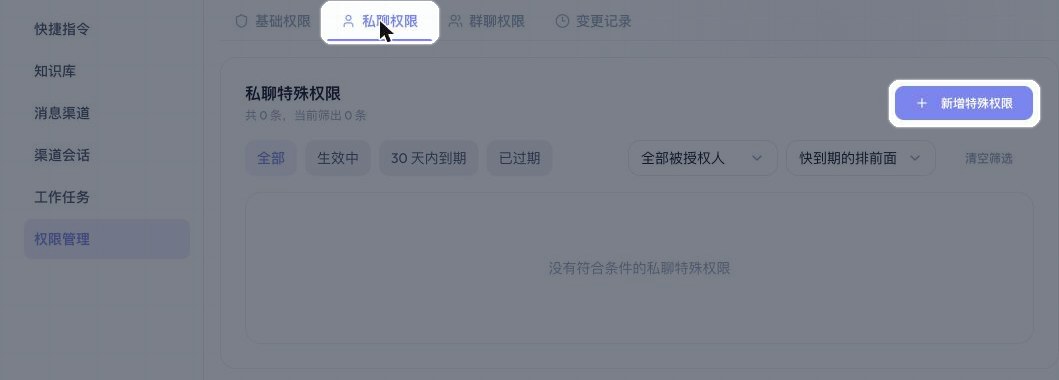
- On the details page, go to Permission Management → Direct Message Permissions and click Add Special Permission.
- Choose the Authorized Person. Each person can have only one entry; to change an existing one, edit it in the list. Source Channel is fixed to Applies to All Direct Message Channels: change it in one place and it is the same however they message this AI employee, from any channel.
- Choose the Validity Period: 30 days, 90 days, 180 days or a custom date (a special direct message permission must have an expiry date).
- Enter the Reason (required; it is written to the change log).
- On top of the General Baseline, open up or take back skills, external system connections, knowledge bases and tools for them. Items you open up cannot exceed the person's own permissions in the company (anything beyond them is shown as unselectable).
- Click Save. No approval · takes effect when saved · fully logged.
In the list you can filter by authorized person and sort by expiry time or by granted / modified time. For each entry you can Edit it, view its Details, and take it back with Revoke Now, or select several entries and use Revoke Selected.
Configure one group individually (group permission)
- On the details page, go to Permission Management → Group Chat Permissions and click Add Group Permission.
- Choose the Group. Only groups in which this AI employee has been @mentioned appear in the list; if the group is not there yet, @mention it once in that group first. Each group can have only one entry.
- Choose the Validity Period (you can choose No Expiry) and enter the Reason (required).
- Check the skills, external system connections, knowledge bases and tools that can be used in this group. The scope cannot exceed the group chat baseline.
- Click Save.
Everyone in the group is treated the same; you cannot open access for just one person. A group with no individual configuration, or whose configuration is disabled or expired, follows the group chat baseline. When you no longer need an entry, use Disable or Disable Selected.
Channel Permissions FAQ
- Someone gets a binding link instead of a reply in a direct message? Allow Anonymous Access is not turned on for this channel, so they need to bind an Octok account first.
- A person with a bound account receives a message saying they have no permission to use it in a direct message? They are not within this AI employee's Who Can Use scope, or they were paused or had access revoked. Ask someone who can manage the AI employee to add them back or restore them under Permission Management → Basic Permissions; see Access Permissions. If the message says they are no longer in this organization, they have been removed from the organization, and an organization administrator needs to invite them again.
- A direct message returns "We can't process your message right now. Please try again later."? Their permission to use it could not be confirmed for the moment. The message was not processed; send it again after a little while.
- The options are grayed out when configuring tools for a person or a group? You need to check the tool in the channel baseline first. The tool scope of a person or a group can only be narrowed within the baseline.
- A newly released tool cannot be used in the channel? This channel's tool scope has already been saved as a fixed list. Go back to the channel baseline and check the tool, or click Reset to Not Configured.
- A checked item is marked No Longer Valid and you cannot save? The item has been turned off or deleted on this AI employee (or is no longer within the scope available for group chats). Uncheck it before saving. The prompt shown when saving includes Uncheck These For Me; click it to uncheck all of them.
- A special direct message permission is set but does not take effect? Check whether Allow Anonymous Access is on for the channel (while it is on, per-person permissions do not take effect), and whether the permission has expired or been revoked (after expiry or revocation, the direct message baseline applies).
- Is there a reminder before a special permission expires? Yes. At 30 / 7 / 1 days before expiry, this AI employee's administrators and the person who last set the permission receive a reminder in Notifications that says which AI employee it is and who (or which group) it was given to. If a name cannot be retrieved, a direct message reminder shows only the expiry date and a group chat reminder shows only the group name. When you click the reminder on the web, it takes you to Direct Message Permissions or Group Chat Permissions under this AI employee's Permission Management and highlights that entry; click its Edit and change the Validity Period to renew it. If Slack is connected, you also receive a direct message (see Connect the Slack App), and the button in the message takes you straight to that entry.