Skills Library and Installing Skills on AI Employees
Browse the skills library, upload skill packages or install them from clawhub, and install skills on your AI employees.
Last updated:
Skills library and installing skills: overview
A skill is a reusable "playbook" an AI employee can call on while working, such as writing a certain kind of report or running a certain kind of analysis. All of your organization's skills live in the skills library. Skills are installed at the organization level, and an AI employee can use one only after you select it on that AI employee's Skills tab.
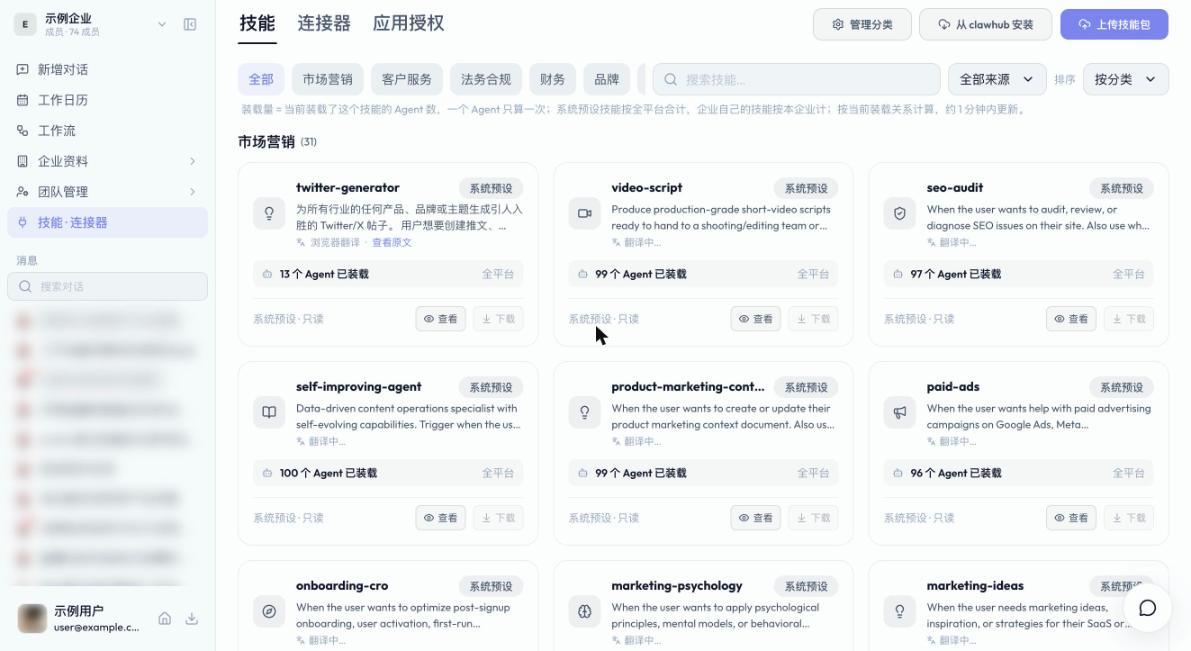
Page overview
Prerequisites
- Your role needs the View Skills permission for Skills & Connectors to appear in the left sidebar. Once inside, switch to Skills at the top of the page.
- Anyone with this permission can upload skill packages, install from clawhub and manage categories.
- For skills added through Web Upload or clawhub, the uploader and anyone whose role has skill management permission (Manage under Skills; see Members & Roles) can change the category or delete the skill. By default only the system role Admin has skill management permission. The uploader is whoever uploaded the version that is currently active.
Browse and view
- Filter by category tab (All, each category, Uncategorized; the preset categories are Marketing, Customer Service, Legal & Compliance, Finance, Brand and Data Analysis, and the number on each tab is the count of skills in that category). You can also search in the Search skills box, or use the All Sources dropdown to filter by source: System Preset, Web Upload, clawhub or Chat-Generated.
- The Sort dropdown offers By Category (default) or Most Installed. Category groups stay the same, and within each category the skills with more installs come first; ties keep their original order. If install counts are unavailable, Most Installed cannot be selected.
- The platform ships with over a hundred preset skills, mostly with English names (for example promo-video for promo videos, twitter-generator for tweets, seo-audit for SEO diagnosis, contract-review for reviewing contracts, and xhs-note-gen for writing Xiaohongshu notes). The set changes as the platform updates. To find a skill, filter by category or search by keyword, and treat what the page shows as the source of truth.
- Each card shows the name, source, description and install count. The description shows up to two lines; hover over it to read the full text. For Chat-Generated skills, the source is followed by the name of the AI employee that trained the skill (it updates if that AI employee is renamed, and keeps the old name if that AI employee is deleted). System Preset skills are marked "System Preset · Read-only". Other skills show an Uploaded time and a scan status such as Scanning, Passed, Failed or Scan Error.
- Click Download on a card to download the skill package. Click View or the skill name to open the skill content page: the file list of the package is on the left and a preview of the selected file is on the right. The top of the page shows Category, Source, Active Version and Linked AI Employees.
- Skills in the same organization with the same source and the same name are treated as different versions of one skill. For Chat-Generated skills they must also have been trained by the same AI employee; same-named skills trained by different AI employees each get their own card. While no version of a skill has passed the security scan, its files are not shown and it cannot be downloaded. Once a version has passed, the content page shows and downloads the Active Version. If the version you opened is not the active one (a newer version is still being scanned, failed, or had a scan error, or it is an older version), an extra line at the top tells you which version you opened and which one is active.
Install count
- The line under the card description shows how many AI employees (labeled Agent on the card) have this skill installed, or No agents have installed this if there are none. The scope is shown on the right: System Preset skills are marked Platform-wide (all organizations combined) and other skills are marked This Organization.
- The note under the toolbar explains the counting: the install count is the number of AI employees that have the skill installed (each AI employee is counted once). Preset skills are totaled across the whole platform, your organization's own skills are counted for your organization only, and the numbers update within about 1 minute.
- An AI employee counts as having installed a skill once the skill is selected and saved on its Skills tab (locked built-in platform capabilities count too). Deleted AI employees are not counted. All versions of the same skill are counted together under one skill, so they show the same number.
- The card shows only a number, not which organizations or which AI employees. To see which AI employees in your organization have it, open the skill content page and look at Linked AI Employees.
- If the count cannot be fetched, the card shows Install count unavailable. The skill list keeps working; refresh the page later.
Translation of skill descriptions
- Descriptions on cards are shown in your interface language. When a description is in one of Chinese, English, Japanese or Korean and differs from your language, it is translated locally by your browser's built-in translation, and the description is not sent anywhere. A card is translated only when it scrolls into view; the original text is shown until the translation is ready, and "Translating…" appears while it runs.
- A translated card shows Browser translation · Show Original below it. Click Show Original to switch back to the original text, and click Show Translation to switch to the translation again.
- If the description is in another language, the language cannot be detected, or the translation fails, the original is shown with the note Translation failed, showing original.
- If the required language pack has not been downloaded yet, a banner above the list asks you to download it (you only need to do this once). Click Download Language Pack; the banner shows the download progress, and when it finishes the descriptions switch to the translation automatically without a refresh. If the download fails, it shows "Language pack download failed"; click Retry to try again.
- If your browser does not support translation, the banner above the list says Your browser does not support translating skill descriptions, so descriptions are shown in the original language. Please use desktop Chrome. If the browser supports it but its built-in translation is unavailable, the banner says Your browser's built-in translation is unavailable, so skill descriptions are shown in the original language.
- Only descriptions are translated. Skill names, the skill content page and the files inside the package are not translated, and neither are the skill descriptions on an AI employee's Skills tab or in the creation wizard. Search matches the original name and description text, so searching for a word that appears only in the translation finds nothing.
Upload a skill package
- Click Upload Skill Package in the top right.
- Choose a Category (optional; if you skip it, the skill goes under Uncategorized).
- Drag in a .zip skill package, or click to select one; you can select several at once. Requirements:
- Only .zip format is supported, with at most 20 skill packages at a time;
- The package must contain exactly one SKILL.md, placed in the root directory or in the single top-level folder, with name and description in the frontmatter at the top;
- (The package size is limited; you will be told if it is exceeded.)
- (File types must comply with the skill specification; you will be told if they do not.)
- After validation passes, a dialog shows the Name, Version and Description that were read from the package. You can edit the name and version (when uploading several packages at once, you can edit them one by one). Click Submit to confirm.
- The platform then runs a security scan. A pass shows Passed. A failure shows Failed with the issue categories and affected files listed below it (up to two categories; for more, click View All Reasons to go to the skill content page). If the scan itself breaks, it shows Scan Error.
Install from clawhub
Click Install, enter a keyword, slug or link to search public skills on clawhub, then click Install on a result, choose the category to put it in, and click Confirm Install. Installed skills also go through the security scan, and can be used by AI employees only after they pass. Skills you have already installed are marked Installed.
Save or edit a skill in chat
- In a chat, you can ask an AI employee to save a way of working as a skill, or to edit an existing skill. This requires that you have management permission for that AI employee.
- Before saving, it automatically checks the skill package and tells you right away what to fix if the check fails. If the check passes, it shows a confirmation card (titled "Please confirm skill upload: skill name") that says whether this creates a new skill or adds a new version to an existing one, and which files are included. The skill is saved only if you choose Confirm Upload, and it counts as uploaded by you personally, so you are responsible for the skill's content and runtime behavior. If you choose Cancel, nothing is saved.
- The confirmation card can appear in web chat, in the desktop client, and in direct messages in Slack, Telegram, WhatsApp and WeChat from members who have linked their Octok account. Anywhere else (for example in a channel or group), the AI employee asks you to say it again in the Octok web app.
- A skill package saved from chat can contain at most 100 files and 20 MB in total, and each file must be no larger than 1 MB. If a package exceeds this, the AI employee asks you to choose: trim it and save again, split it into two skills, or not save for now.
- Which skills can be edited directly:
- Chat-Generated skills: you can edit them in chats with the AI employee that owns them. With any other AI employee you can only save a copy, and the AI employee first tells you which AI employee manages this skill. Once the copy passes the scan, it replaces the original skill on the current AI employee only; the original skill and other AI employees that use it are not affected.
- Web Upload skills: you must be the uploader or have skill management permission, and the skill must already be installed on the current AI employee. The edit becomes a new version of the same skill, and the source and uploader stay the same. If these conditions are not met, you can only save a copy of your own.
- System Preset and clawhub skills: they cannot be edited directly; you can only save a copy.
- You can also ask it to list all versions of a skill, roll back to an earlier version that passed the scan (a rollback creates a new version and goes through the scan again), or rescan a version whose scan failed to run. While a new version is still being scanned, you cannot edit again; wait for the result.
- Scan results (passed, reasons for failing, scan errors) are reported back in the original chat. If a version fails or has a scan error, the previous version stays active.
Manage categories and delete skills
- Manage Categories: create, rename and delete custom categories. Categories marked Preset are platform presets and cannot be edited or deleted. Each organization can have up to 20 custom categories, and a category name can be up to 30 characters. A confirmation dialog appears before you delete a category.
- For Web Upload and clawhub skills, anyone with permission to manage them (see Prerequisites above) can change the category directly on the card, or Delete the skill. A confirmation dialog appears before deleting. Deleting removes all versions of the skill and does not fall back to an older version.
- Chat-Generated skills belong to the AI employee that trained them: anyone with management permission for that AI employee can change the category or delete the skill. If that AI employee is deleted, the skill is kept and AI employees that already installed it keep using it as before, but it no longer appears among the skills other AI employees can select. From then on, the system role Admin changes its category and deletes it (the content cannot be edited). When you delete, the confirmation dialog states how many AI employees are still using it (this line is hidden if none are using it, or if the number has not been fetched yet).
- System Preset skills cannot be recategorized or deleted.
Install skills on an AI employee
- Open the AI employee's detail page → Skills tab (you need management permission for it; otherwise you can only view).
- Select the skills you want it to have. Only skills that passed the security scan are listed here. Items with a lock icon are built-in platform capabilities (hover to see Built-in platform capability, available to all AI employees) and cannot be unselected.
- Skills that other AI employees in your organization generated in chat and that passed the scan can also be selected (except those whose training AI employee has been deleted). Their source is marked Chat-Generated followed by the name of the AI employee that trained them (hover over it, or open the skill view page, to see that it is maintained by that AI employee's manager and can only be selected here). What you select is the same skill, not a copy: when the owner edits the skill and the new version passes the scan, your AI employee automatically uses the new version; while a new version is still being scanned or has failed, it keeps using the last version that passed; and if the owner deletes the skill, it disappears here too. If the skill uses app authorizations or business systems, the current AI employee must have them as well, otherwise execution fails at that step. Before selecting, you may want to confirm with the other AI employee's manager.
- On a single AI employee, only one skill of a given name can be selected: once you select one, the others with the same name are grayed out.
- Click Save. After saving, it can use these skills the next time it works.
When a skill gets a new version and it passes the security scan, AI employees that have already selected it switch to the new version automatically within about 30 seconds, with no need to select it again. While a new version is still being scanned or has failed, they keep using the old version.
When you create an AI employee, you can also select skills in the Skills step of the wizard (locked ones are marked General Skills · Included by Default, and you can likewise select skills that other AI employees in your organization generated in chat). In the next step, Shortcuts, you can click Generate from Selected Skills to generate the chat entry shortcuts from the selected skills in one click.
After creation, the Shortcuts tab on the detail page has no one-click generate button. You can only Add Shortcut and edit them manually; see Configure an AI Employee.
In messaging channels, which skills an AI employee can use is also limited by channel permissions; see Channel Permissions.
Skills library and installing skills: FAQ
- The upload shows Failed? Hover over the status to see the first two issue categories and the affected files. Click View to open the skill content page, which lists all issue categories and files. Fix the skill package as indicated and upload it again.
- The upload says the archive is corrupted or cannot be read? The package itself is broken or is not a zip file. Repackage it and upload again.
- Submitting says a skill with the same name and version already exists? Change the version number and submit again. Uploading a package with the same name but a different version number creates a new version of that skill.
- The upload says a colleague in your organization has already uploaded a skill with the same name? Only the original uploader or someone with skill management permission can publish a new version of a same-named skill. Give your skill a different name and upload it again.
- The skill is in the library but the AI employee cannot use it? First confirm that the skill shows Passed. Then check on the AI employee's Skills tab that it is selected and saved. When using it in a channel, also confirm that the skill is enabled in the channel permissions.
- Can I delete the platform's built-in skills? No. System Preset skills are read-only.
- The install count on a system preset skill card does not match Linked AI Employees on the content page? This is normal. The card shows the total across all organizations on the platform, while the content page lists only AI employees in your organization. For your organization's own skills, both count only your organization.
- I just selected or unselected a skill on an AI employee, but the install count did not change? It updates within about 1 minute. Refresh the page after a short while.
- The skill description is not translated? First check the banner above the list: if it asks you to download a language pack, click Download Language Pack; if it says your browser is not supported, switch to desktop Chrome. Descriptions that are already in your interface language are not translated.