Credits, Plans & Usage
AI employees use credits when they work. Learn about plans and seats, the shared organization pool, buying credits, changing plans and canceling, viewing organization and personal usage, and what happens when credits run out.
Last updated:
Credits, Plans & Usage overview
AI employees consume credits when they work. Credits come from two sources, and they are deducted in this order:
- Personal monthly credits: each member gets one allowance per month. Members with a paid seat get the plan's per-seat allowance; members without a seat get the free-tier allowance. The allowance resets every cycle and does not roll over.
- Shared organization pool: credits the organization bought plus credits granted by the platform, shared by everyone. When a member's monthly credits run out, usage switches to the shared pool automatically, with no action needed.
Billing is always in USD. Plans are priced by "people + credits" and are monthly only.
Page overview
Before you start
- Only the system role Admin can open Billing & Subscription and Credit Usage; they cannot be given to a custom role. Buying credits, changing plans, buying more seats, and canceling a subscription are all admin-only.
- Assigning and reclaiming seats for members is done in Member Management and requires the member management permission. See Members & Roles.
- Everyone can check their own usage under the personal account entry → Plan & Usage.
Billing & Subscription (admins)
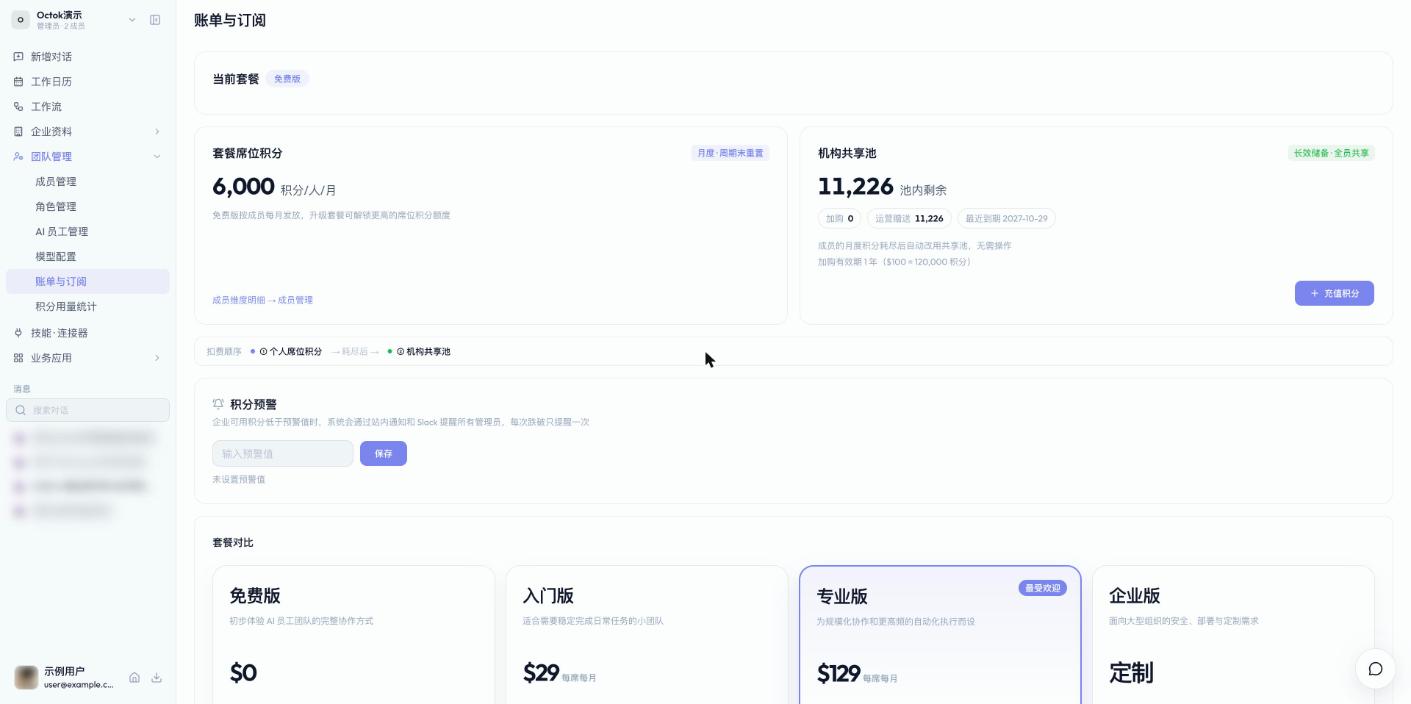
In the left menu, go to Team Management → Billing & Subscription. From top to bottom, the page contains:
- Current Plan: the plan name and status, used / purchased seats, estimated monthly cost, and the expiry or next billing date. You can Cancel Subscription, and for a subscription already scheduled to cancel you can Resume Subscription.
- Renewal Settings (paid plans): set the number of seats to subscribe to at the next renewal. This affects only the next cycle's bill and cannot be lower than the number of seats still in use at the end of the period. When a plan change is scheduled, you can Undo Plan Change.
- Plan Seat Credits: this month's remaining and used credits, and credits per seat per month. On a paid plan you can Buy More Seats.
- Shared Organization Pool: Pool Balance Remaining, the Purchased and Promotional Grants portions of it, and the nearest expiry date. Click Buy Credits to top up. If credits are overspent, the page shows the debt awaiting offset, and credits bought later first pay off that debt.
- Plan Comparison: All three tiers have identical features; only the monthly credit allowance differs. Billed by "people + credits", monthly only. Each tier shows its per-seat monthly price and credit allowance; for Enterprise, click Contact Sales. Live prices as of 2026-11 (the page is authoritative): Free is $0 with 6,000 credits per seat per month; Starter is $29 per seat per month with 40,000 credits; Pro is $129 per seat per month with 200,000 credits; Enterprise has custom pricing (SSO, multiple organizations, private deployment, custom development).
- Payment Method (shown when you have an active subscription): view it or Change it.
- Billing History: each invoice's number, date, item, amount, and status.
Buy credits
- In Shared Organization Pool, click Buy Credits.
- Choose the Number of credit packs. Each pack costs $100 and gives 120,000 credits, which go into the shared organization pool and are valid for 1 year. The dialog shows the total credits and the Amount due this period.
- Choose Credit Card · Stripe as the payment method.
- Click "Confirm Payment". If you already subscribe to a paid plan by credit card, the saved card is charged directly; otherwise you are redirected to a payment page to complete the payment. Credits may arrive with a delay; refresh the page after a moment.
Subscribe, upgrade, and downgrade
- In Plan Comparison, click the plan you want. For a first subscription, choose the Number of seats (no fewer than the seats already in use); after you confirm, you are redirected to a payment page.
- Upgrade: you pay the price difference immediately, the extra credits arrive right away and are valid until the end of the current billing cycle, and any unused ones are cleared at the end of the cycle. The number of seats cannot be changed while switching plans; add or remove seats separately.
- Downgrade to a lower paid tier: takes effect in the next billing cycle, and no payment is needed now.
- Downgrade to the free plan: you move to the free plan when the current cycle ends. Benefits for the current period stay unchanged, and there is no refund.
- Cancel the subscription: it expires at the end of the current cycle and does not renew. You can Resume Subscription before the cycle ends.
Seats
- A seat must be assigned to a specific member, and only members with a seat get the plan's monthly credit allowance. Use Assign Seat in a member's action menu in Member Management.
- Reclaiming a seat takes effect in the next billing cycle: the member can still use the seat for the rest of this cycle.
- Buy More Seats adds seats immediately in the current cycle, and the price difference is prorated by the remaining days. Adding or removing seats in Renewal Settings takes effect from the next renewal date.
Credit Usage (admins)
In the left menu, go to Team Management → Credit Usage.
- At the top right, pick a time range: Last 7 days, Last 30 days, or All time.
- Three figures: Credits Used, Remaining (Plan allowance + purchased), and Purchased Balance.
- Credit Usage Trend: a daily consumption curve.
- Two rankings, By Team Member and By Agent; Only usage attributable to an agent is counted.
My Plan & Usage (everyone)
Personal account entry → Plan & Usage:
- Current Tier. If your organization is on a paid plan but you have not been assigned a seat, you see No paid seat assigned · using free-tier capabilities; ask an organization admin to assign you a seat if you need one.
- My Usage This Cycle: Plan Credit Allowance, Used This Cycle, My Remaining, plus a progress bar of your personal credits used.
- Team Shared Credits Remaining: After your personal credits run out, you can keep using the team's shared credit pool.
- A chart of daily credit consumption over the last 30 days.
When credits run low
- When your personal credits plus the shared pool add up to less than 10% of your monthly allowance, a dismissible reminder bar appears at the top of the page. The admin's reminder bar has View Usage and Buy Credits buttons.
- When credits are used up (both personal and the shared pool), a red, non-dismissible banner appears at the top and AI employees stop replying. The chat tells you the message was not processed: admins see that the organization's credits are used up and the message was not charged, with a Buy Credits button next to it; regular members see Credits have run out. Please contact your organization admin to top up. After the top-up arrives, send the message again.
- When credits run out, creating knowledge bases and uploading knowledge base files are also blocked.
Organization credit alert (admins)
Admins can set an alert threshold. When the organization's available credits fall below it, all admins are reminded to top up in time.
- On the Billing & Subscription page, find the Credit Alert card (visible to admins only).
- Enter alert threshold (a non-negative integer) and click Save; to turn the alert off, click Clear.
- When the organization's available credits fall below the threshold, the system reminds all admins through in-app notifications and Slack, once per drop below the threshold. To receive the Slack reminder, an admin must connect Slack under Personal Authorization; connecting it only under Organization Authorization will not deliver it (see Connect the Slack App).
After credits rise back above the threshold, you are reminded again only when they fall below it again.
Not supported yet
- KakaoPay: not available yet; only USD billing is supported for now.
- Trial or complimentary subscriptions (enabled by platform operations) cannot be changed on the page by yourself. The page shows This subscription is managed by platform operations (trial/complimentary). To change it, contact customer service.
Credits, Plans & Usage FAQ
- I bought credits, so why are members still charged from their own credits first? The deduction order is fixed: personal monthly credits first, then the shared pool once they are used up.
- Can regular members buy credits? No. Ask an organization admin to buy them in Billing & Subscription.
- The conversion shown on the shared pool card differs from the credits in the purchase dialog? The number in the purchase dialog is authoritative; each pack adds 120,000 credits.
- Usage by AI employee adds up to less than total consumption? By Agent counts only consumption that can be attributed to a specific AI employee.