Personal Settings: Account, Notifications & My Organizations
Your personal account in Settings (name, time zone, organization identity, my devices), in-app notifications (including official Octok announcements), and My Organizations (switch, create, or leave an organization).
Last updated:
Personal Settings overview
The Settings page holds settings that concern you personally. Everyone manages only their own, and no role permission is needed. The left side has two groups: Personal (Account, Notifications, Plan & Usage) and Organization (My Organizations, Pending Invitations). For Plan & Usage, see Credits, Plans & Usage; for Pending Invitations, see Members & Roles.
Page overview
How to get there
- Click your personal account entry at the bottom left → Account or Notifications (when you have unread notifications, this item shows a red number).
- My Organizations: use the organization switcher at the top left → Manage My Organizations, or click it on the left side of the Settings page.
- On mobile, the Settings page does not show the left column; go straight to the page you need through the entry points above.
Account
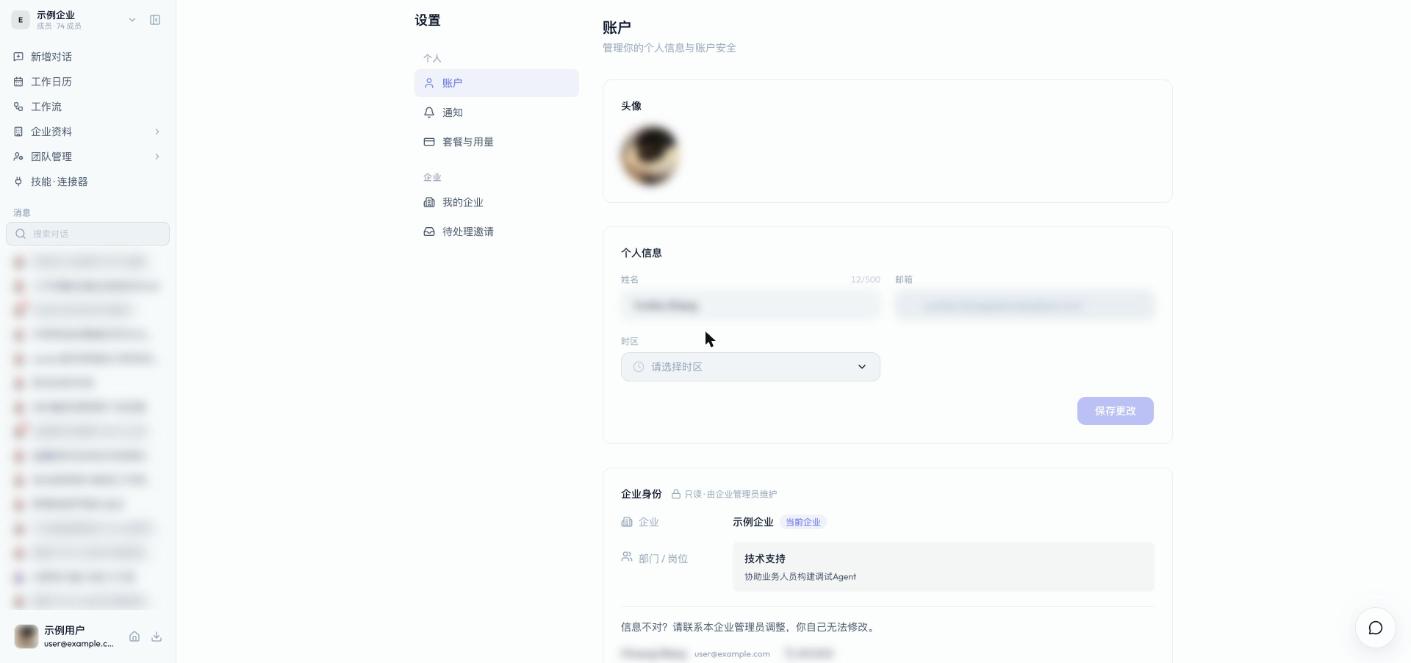
The page description reads Manage your personal information and account security. From top to bottom, it has four blocks:
- Avatar: shows your avatar, or the first letter of your name if you have none. You cannot upload or change it here at the moment.
- Personal Information: Name (up to 500 characters), Email (the email you sign in with; view-only), and Time Zone (choose from the drop-down list, which includes a dozen or so common time zones). After making changes, click Save Changes.
- Organization Identity (Read-only · maintained by organization admins): the organization you are currently in and your Department / Position there, which means the roles assigned to you and their descriptions; system roles are marked System. If you are not an admin, the organization's admins and their emails are listed below, and you can Copy Email. If something is wrong, ask them to adjust it in Member Management; you cannot change it yourself. This block does not appear if you have not joined any organization yet.
- My Devices: Manage devices signed in to this account; a revoked device must sign in again. It lists devices on which this account is signed in through a client app (device name · system, and Last used time). Click Revoke to sign a device out. Web browser sign-ins are not listed here.
Notifications
The in-app notification center.
- The top shows the unread count (or No unread notifications when there are none). When there are unread items you can click Mark All as Read; clicking the same button inside a category tab marks only that category as read.
- Category tabs: All, System, AI Employee, Billing, each with its own unread count (on mobile only icons are shown). Clicking a notification marks it as read. Each page holds 20 notifications; use the pager when there are more. In the list, each notification's body shows at most two lines. Clicking a System notification opens a pop-up with the full title and body (except expiry reminders for private-chat special permissions and group permissions: clicking those jumps straight to that permission).
- Notifications you will receive:
- AI Employee: one notification each time a scheduled task you created runs (success or failure); a run skipped for reasons such as insufficient credits does not send one. Open it to see the run details, which are the same as the details in Work Calendar (see Work Calendar). Sent only to the person who created the task.
- System: reminders when a private-chat special permission or group permission in a channel has 30 days, 7 days, or 1 day left. These go to the manager of that AI employee and to the person who last set that configuration, and clicking one jumps straight to that permission (see Channel Permissions). You are also notified when a scheduled workflow run you created fails to start, does not run because of insufficient credits, or is stopped (see Run a Workflow). Official announcements published by Octok appear here too; they may go to the whole organization or only to some members. An announcement is shown in the version that matches your current interface Language; if there is no version in that language, the default version chosen by the publisher is shown, and announcements you already received switch version when you change Language.
- Billing: when an admin has set an organization credit alert and the organization's available credits fall below the threshold, all admins receive an Organization credits running low notification; clicking it takes you straight to the billing page to top up (see Credits, Plans & Usage).
- If you connected Slack under Personal Authorization, these notifications (including official announcements) are also sent to you as Slack direct messages, and you can turn off individual categories. See Connect the Slack App. In Slack, an official announcement is shown in the version that matches the language you set in Slack, so it may differ from the language you see on the web.
My Organizations
The page description reads Manage all the organizations you have joined, or create a new one. Each organization has one card: organization name, your identity in it (Admin or Member), member count, and join date. The organization you are currently in is marked Current, and its button reads Current Organization.
- Switch organizations: click Enter on another organization's card. After the switch, the whole page refreshes and you return to the chat page. You can also switch with the organization switcher at the top left.
- Create an organization: click Create Organization at the top right and enter an Organization Name (2 to 30 characters). After creation you switch to it automatically, you are its Admin, and the platform sets up a Navigator for you. Fill in the rest of the details in Company Info. See Company Info.
- Leave an organization: you can only leave the organization you are currently in. On its card, click More actions ("…") at the top right → Leave Organization, then confirm.
- You cannot leave an organization you created; its card has no such menu.
- You cannot leave if you are the only Admin of the organization; first make someone else an admin too.
- If you are the only admin of some knowledge bases, the confirmation dialog warns you that these knowledge bases will be managed by the system role Admin (every member of the organization who holds that role can manage them). Google Drive sync knowledge bases you created become regular knowledge bases after you leave and no longer sync automatically; files already synced are kept.
- After you leave, you lose access to the organization and need a new invitation to return. You are then switched to another of your organizations automatically; if it was your only organization, you are signed out.
Personal Settings FAQ
- I changed my Time Zone, but the time an AI employee reports in web chat is still wrong? In web chat, the AI employee interprets time using the time zone of your computer (browser) and ignores this setting. Check your computer's time zone settings.
- I want to change my sign-in email. Changing the email here is not supported at the moment.
- The role shown under Organization Identity is wrong? Ask an organization admin to change your role in Member Management. See Members & Roles.
- I can't see notifications for a colleague's scheduled tasks? Task results are sent only to the person who created the task.
- A colleague received an official Octok announcement but I didn't? The announcement may have been sent to only some members. An announcement sent to the whole organization goes only to people who were in the organization at the moment it was published; people who joined later do not see it. A newly published announcement may take a little while to appear in the list.
- A client device is unfamiliar or no longer used? Click Revoke in My Devices; that device must sign in again before it can be used.
- How many browsers can I be signed in to at once? One account can stay signed in on up to 5 web browsers at the same time without kicking each other out. When you sign in on a 6th, the earliest sign-in is signed out and must sign in again. Clicking Sign Out in one browser signs out only that one; other browsers and client apps are not affected. Client app sign-ins do not count toward these 5 slots.