Long-Term Memory of AI Employees
Have an AI employee remember your preferences and work background, see what it remembered in a chat, and view and delete your own memories on its details page
Last updated:
Long-Term Memory Overview
When you chat with an AI employee in New Chat, it remembers the preferences, facts and work background you state explicitly, and uses them later when needed. You can also simply tell it "Remember …".
The AI employee decides for itself whether something is worth remembering long term. It generally does not keep things that only matter this time, things that can be looked up in a system, long content, or passwords and ID numbers. Even if you say "remember", it may use the information only in this conversation, and in that case no memory card appears.
Memories are separate for each person under each AI employee: others cannot see your memories, and your memories under two different AI employees are not shared.
Prerequisites for Long-Term Memory
- It only works in conversations started from New Chat in the web app. In messaging channels, scheduled tasks, groups, workflows and the desktop client, it does not remember anything and does not use existing memories.
- Memory is always off for an AI employee that acts as customer service; see Customer Service Platform.
How to Tell It Remembered
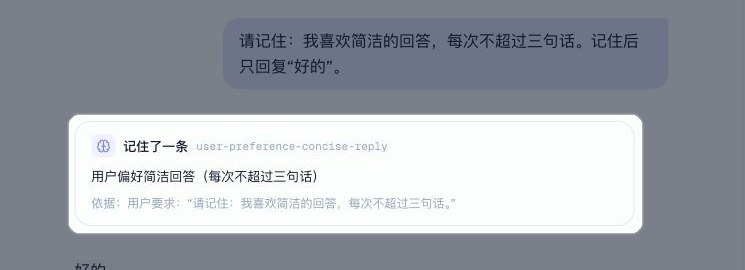
When it writes, changes or deletes a memory, a card appears in the chat titled Remembered one item, Updated one memory or Forgot one memory, with the basis or reason for the action below it.
If saving fails, the card title is Could not remember this item, Could not update this memory or Could not delete this memory, with the message Not saved this time; nothing in memory has changed.
View and Delete Memories

Go to the AI employee's details page → Basic Info tab → Long-Term Memory card. It lists only your own memories, and anyone who can chat with this AI employee can view them.
- Click an item to expand its full text.
- Hover over an item and click the trash icon to delete it.
- When there are many memories, Load More appears at the bottom.
When Memory Is Off
When memory is turned off for this AI employee, the Long-Term Memory card is replaced by a notice. With no memories yet, it says Memory is off for this AI employee. It will not record new content or use existing memories in chats. With existing memories, it says Memory is off for this AI employee. It will not record new content or use the memories below in chats. You can still view and delete them.
If only its ability to record new content is turned off, the notice with no memories yet is This AI employee is not recording new content right now. With existing memories it is This AI employee is not recording new content right now. You can still view and delete the memories below.
In both cases, existing memories are still listed on the card and can be viewed and deleted.
There is no memory switch in the workspace. Memory is turned off automatically when an AI employee acts as customer service, and restored when customer service is deactivated (see Customer Service Platform).
Not Yet Supported in Long-Term Memory
- Manually adding or editing memories in the Long-Term Memory card. To have it remember or change something, just tell it in the chat.
Long-Term Memory FAQ
- You told it "remember" but the card is still empty? First confirm you said it in New Chat in the web app. Then check whether the card shows a "Memory is off" or "not recording new content" notice; if it does, memory is turned off for this AI employee.